
0

Content Expander Widget
Purpose
This page explains how to use the Content Expander widget in Page Builder. The Content Expander widget displays selected reusable content chunks in an expandable format. It is useful when readers need to scan a set of headings and open the items that are relevant to them.
The widget calls content chunks from the Content Hub. The selected content chunk title becomes the expander heading, often used like a FAQ heading. The content inside the chunk becomes the expanded body content that appears when the reader opens that item.
What this page Teaches
- What the Content Expander widget is for and when authors should use it.
- How the widget uses selected content chunks as expandable items.
- How the content chunk title becomes the expander heading.
- How the content inside the chunk becomes the expanded body content.
- How to select existing content chunks, check status, and apply layout classes safely.
- How to preview expanded and collapsed states before requesting publication.
Pro Tip: Write the content chunk title as the exact heading readers should see. If the title is unclear in the Content Hub, it will also be unclear in the expander.
Before you Begin
Confirm that expandable content is the right pattern for the page. Expanders work best for short, self-contained answers or supporting details that readers may not all need at once.
Do not hide critical instructions, legal requirements, emergency information, or primary page content inside an expander. Important content should be visible without requiring the reader to open an item.
Before configuring the widget, confirm:
- You are editing the correct page in Page Builder.
- The reusable content chunks already exist, or you have permission to create them.
- Each chunk title is written as the reader-facing expander heading.
- Each chunk body is concise, accurate, and suitable to show as expanded content.
- The selected chunks are published or in the correct workflow state for the page output.
- You know whether a layout class is required for this expander pattern.
Basic Workflow
Step 1: Open the Content Expander Widget
- Open the page in Page Builder.
- Select the Content Expander widget in the editable area where it appears.
- Open Content Expander properties.
- Confirm you are editing the intended widget before selecting or removing content chunks.
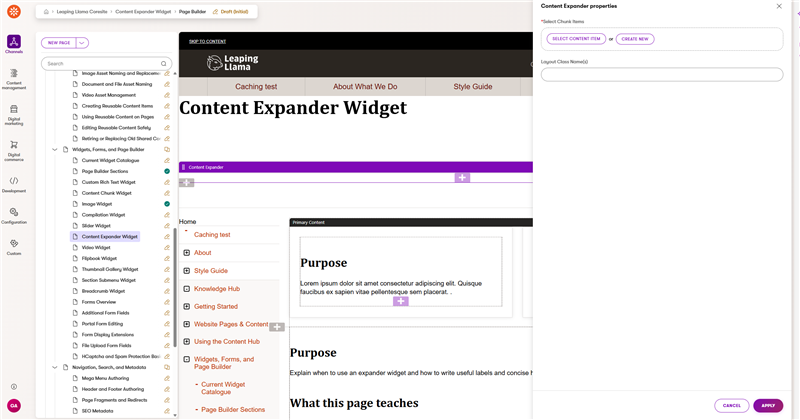
Step 2: Select Existing Content Chunks
- In Select Chunk Items, choose Select Content Item.
- Use the content item selector to find the required reusable content chunk.
- Check the item name, content type, status, last modified date, and location before selecting it.
- Select the chunk and confirm the selection.
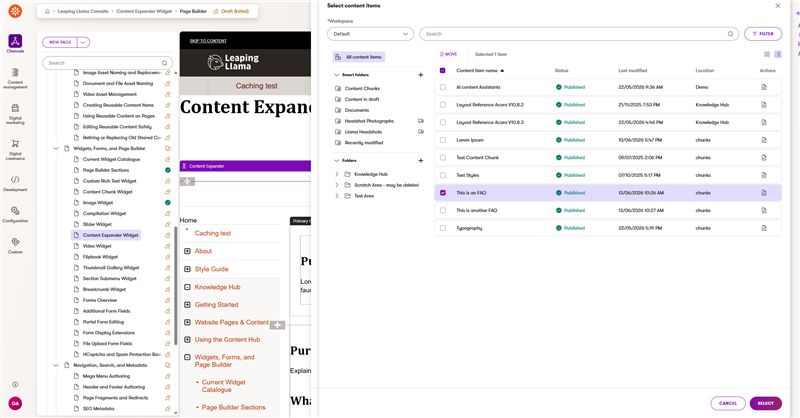
Use existing chunks when the same content needs to be reused across pages. Create a new chunk only when you have confirmed that a suitable reusable content item does not already exist.
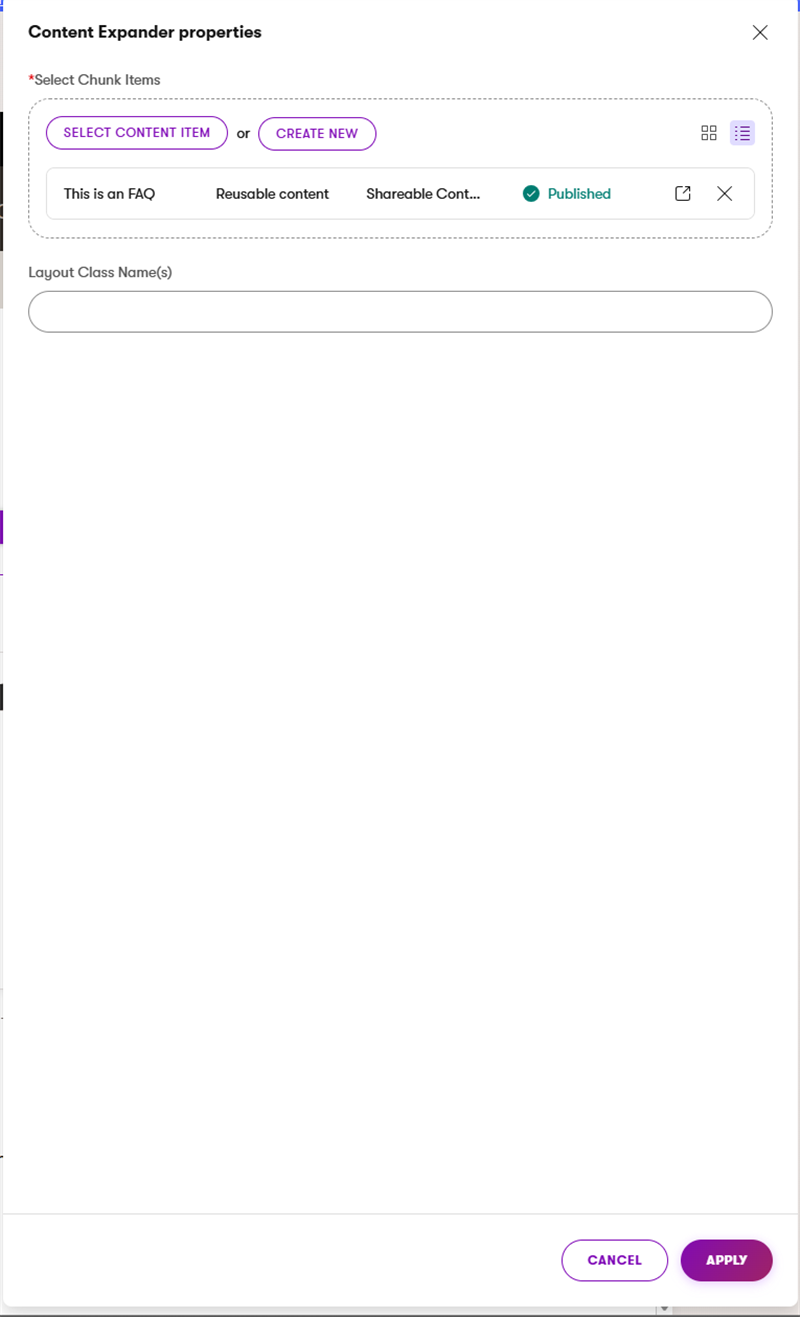
Step 3: Check How the Chunk Will Display
- Open the selected content chunk if you need to inspect it before applying the widget.
- Check the chunk title. This becomes the expander heading.
- Check the chunk body content. This becomes the expanded content.
- Check links, formatting, headings, and any media inside the chunk.
- Confirm the chunk status is appropriate for the page workflow.
Pro Tip: If the expander is being used for question-and-answer content, keep the question in the content chunk title and the answer in the content chunk body.
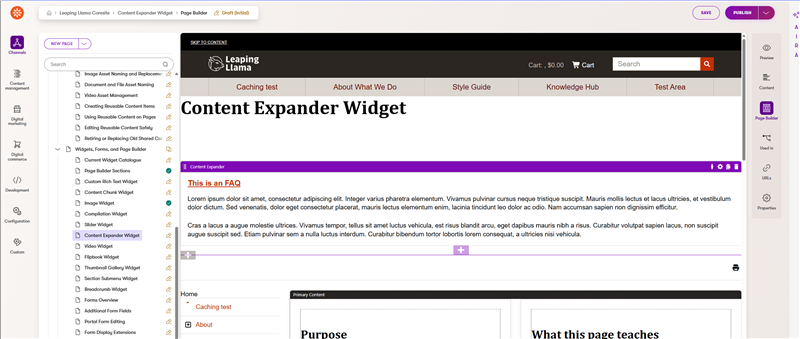
Step 4: Add More Chunk Items if Needed
- Add additional content chunks only when each item belongs in the same expander group.
- Keep the group focused. A long list of unrelated expanders is difficult to scan.
- Review the order of selected items if the widget or selector allows ordering.
- Remove any selected chunk that does not belong on the page.
Step 5: Use Layout Class Names Carefully
- Use the Layout Class Name(s) field only when the site has an approved class for the intended display.
- Do not add class names to force spacing, colours, or behaviours that have not been confirmed for the site.
- If unsure, leave the field blank and ask a trainer, site owner, or developer to confirm the correct class.
Step 6: Apply, Save, and Preview
- Select Apply in the Content Expander properties panel.
- Save the page draft or working version.
- Preview the page and check the collapsed state.
- Open each expander item and check the expanded body content.
- Check that the chunk title appears as the expected expander heading.
- Check desktop and mobile layout, keyboard access, links, and readability.
- Do not publish, submit, schedule, unpublish, or archive unless that action has been specifically requested.
Quality Checklist
- The Content Expander widget is in the correct Page Builder editable area.
- Each selected content chunk belongs on the current page.
- Each content chunk title works as a clear reader-facing expander heading.
- Each content chunk body works as the expanded content.
- Selected chunks are not duplicated elsewhere on the same page in a confusing way.
- Selected chunks have the correct workflow status for the intended page output.
- Any links or media inside the chunks have been checked.
- The expanded and collapsed states are usable on desktop and mobile.
- The layout class name is approved and spelled correctly, or the field is intentionally blank.
- No critical information is hidden only inside an expander.
- No publish, unpublish, archive, or schedule action was taken unless specifically requested.
Related Pages
Login Panel
Training Guidelines
When training authors on this topic, start by showing that the Content Expander widget does not store the visible content directly in the widget. It displays selected reusable content chunks.
Demonstrate one selected chunk. Open the widget properties, identify the selected item, then open or describe the content chunk so learners can connect the chunk title to the expander heading and the chunk body to the expanded content.
Ask learners to review a chunk title and decide whether it is suitable as a reader-facing heading. Then ask them to review the expanded content for length, clarity, links, and formatting.
End the session by previewing both collapsed and expanded states on desktop and mobile. Confirm learners understand that editing the reusable content chunk may affect every page where that chunk is used.