
0

Creating and Updating Taxonomies
Purpose
This page explains how to create and update taxonomies in Xperience by Kentico. Taxonomies help authors classify pages, reusable content items, and assets with consistent tags so content can be found, filtered, reused, and displayed in the right places.
Use this page when you need to add a new taxonomy tag, update an existing tag, organise tags into a parent-child structure, or check whether a taxonomy change could affect existing content.
What this page teaches
- Find existing taxonomy groups and tags before creating new ones.
- Create and update tags, organise parent-child relationships, and translate labels where needed.
- Check where tags are used before changing identifiers, deleting tags, or reorganising shared classifications.
- Verify taxonomy changes against the article quality checklist.
Before You Begin
- You need access to the Taxonomies application in the Xperience by Kentico administration interface. You will need administrator access or above.
- Know why the taxonomy is being changed and which pages, content items, assets, widgets, filters, or smart folders may use it.
- Check whether the tag already exists before creating a new one.
- Ask a developer or site administrator before changing an identifier, deleting an existing tag, or reorganising a taxonomy that is used for filtering or dynamic content delivery.
Pro Tip
Taxonomies are shared structures. A small label change may look simple, but it can affect every page, content item, asset, smart folder, filter, or widget that relies on that tag.
What taxonomies are
A taxonomy is a structured set of tags. Tags describe what content is about, who it is for, how it should be grouped, or how it should be filtered. In Xperience by Kentico, tags can be organised in a hierarchy, which means broad parent tags can contain more specific child tags.
For example, an organisation might have a taxonomy group called Article type. Under that group, it might have tags such as News, Case study, Guide, and Press release. A page or content item can then use one of those tags so authors and site features can treat that content consistently.
Taxonomy groups and tags
A taxonomy group is the overall category structure, such as article type, audience, topic, product type, or service area. A tag is one selectable item inside that group. Tags can sit at the top level or under another tag as a child tag.
In many projects, developers, administrators, or business analysts define which taxonomy groups the site needs. Content authors usually apply tags to content and may update tag labels or descriptions when the change is agreed. Create a new taxonomy group only when the site needs a new shared classification structure, not just a one-off label for one page.
When to create or update taxonomies
Create or update a taxonomy when the site needs a consistent way to classify content. Good reasons include adding a new topic area, separating different article types, improving content filtering, supporting a smart folder, or helping authors find reusable content more quickly.
Do not create a new taxonomy tag just because one page needs a one-off label. If the classification will not be reused, a page title, heading, summary, metadata field, or normal rich text may be more appropriate.
Steps
Step 1: Open the Taxonomies application
- Log in to the Xperience by Kentico administration interface.
- Open the main dashboard.
- In the Configuration section, select Taxonomies.
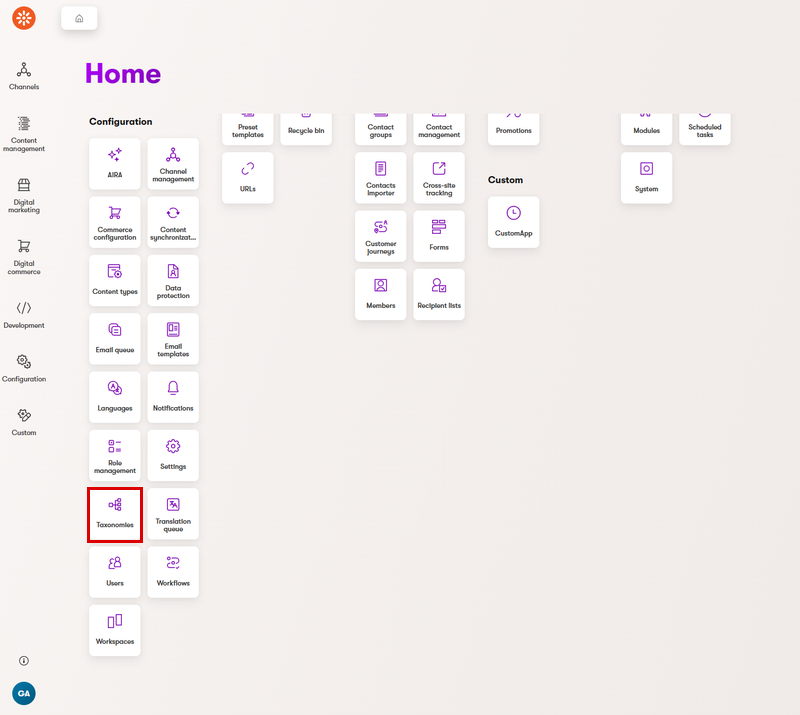
Step 2: Check whether the taxonomy or tag already exists
- Review the existing taxonomy list before creating anything new.
- Search for the exact term before you start.
- Open the most relevant taxonomy group and check the tag tree.
- Look for similar names, spelling variants, plural and singular versions, and tags that may already cover the same meaning.
- If you find a duplicate or near-duplicate, update the existing tag only if the meaning is truly the same.
Step 3: Create a new taxonomy group or top-level tag
- In the Taxonomies application, select the action to create a new taxonomy if you need a new shared taxonomy group.
- Enter a clear Taxonomy name that authors will understand.
- Add a useful Description explaining what the taxonomy is for and when it should be used.
- Leave the Identifier unchanged unless a developer or administrator has asked for a specific identifier.
- Save the taxonomy.
- Add the first tags that authors will select when applying this taxonomy to content.
Pro Tip
The description is for your colleagues, not just for the person creating the tag today. A good description prevents future authors from guessing which tag to use.
Step 4: Update an existing taxonomy tag
- Find the tag in the taxonomy tree.
- Open the tag.
- Update the name, description, or other approved fields.
- Save the change.
- Check content that already uses the tag, especially pages or widgets that display filtered lists.
Be careful with the Identifier. The identifier is a developer-friendly name that may be used by code, filters, widgets, integrations, or other configuration. Changing it can break behaviour that is not obvious from the taxonomy screen.
Step 5: Add and organise parent and child tags
- Open the taxonomy group that needs new or reorganised tags.
- Select the parent tag in the taxonomy tree before adding a child tag.
- Create the new child tag under the selected parent.
- Use child tags only when the relationship is meaningful. The parent should describe the broad group, and the child should describe a more specific option inside that group.
- If you need several tags at the same level, use the save-and-create-another option if it is available.
- If a tag is in the wrong place, move it carefully in the hierarchy and then check any pages, widgets, filters, or smart folders that may rely on the old structure.
Step 6: Translate tags if the site uses multiple languages
- Open the tag that needs translated labels.
- Add the required language variants in the taxonomy screen.
- Save the translated tag labels.
- Check the translated content or page preview to confirm the right label appears for the language variant.
Step 7: Avoid deleting tags unless you have checked usage
- Before deleting a tag, confirm whether pages, content items, assets, smart folders, widgets, filters, or integrations use it.
- If the tag is no longer suitable but is still used, consider renaming it, updating its description, or replacing it in content before deleting it.
- Only delete a tag when you are confident it is not needed and the impact has been reviewed.
Pro Tip
Deleting a taxonomy tag can be more disruptive than retiring it from future use. If the tag is already attached to content, ask whether existing content should be retagged first.
Step 8: Check where taxonomy tags are used
- Open the page, content item, widget, smart folder, or filter that uses the taxonomy.
- Confirm the expected tags are available for selection.
- Preview any page or listing that depends on the tag.
- Confirm the right content appears and no unrelated content has been included.
- If the tag affects a public page, request review before publishing related changes.
Quality checklist
- The taxonomy tag has a clear name that matches the site's naming conventions.
- The description explains when authors should use the tag.
- The tag is not a duplicate of an existing tag.
- The parent-child relationship is logical and easy to explain.
- The identifier has not been changed unless a developer or administrator approved it.
- Any translated labels have been checked in the relevant language variant.
- Any page, widget, smart folder, filter, or content item that depends on the tag has been previewed.