
0

Move or Reorder Pages
Purpose
Use this page when you need to change where a page appears in the Xperience by Kentico content tree, adjust the order of pages in a section, or move a page under a different parent page.
Moving and reordering pages affects more than the authoring tree. It can change navigation menus, breadcrumbs, section menus, URLs, redirects, and internal links. Treat these changes as part of the publishing workflow, not as simple housekeeping.
What this page teaches
- The difference between reordering a page and moving a page.
- How to use the content tree drag handle.
- How to reorder pages within the same parent page.
- How to move a page under a different parent page.
- How moving a page can affect the page URL.
- What to check after moving or reordering pages.
Before you Begin
Before changing the content tree, confirm why the page needs to move or change order. A small tree change can affect the public website if the page appears in navigation, breadcrumbs, cards, section menus, or campaign links.
- Confirm you are working in the correct website channel.
- Find the current page in the content tree.
- Check whether the page is already published.
- Check whether the page has child pages that will move with it.
- Decide whether you are reordering the page within the same parent or moving it under a different parent.
- Check whether the current URL is used in important links, documents, campaign material, or printed references.
Pro Tip: If you only need to change the order of pages in the same section, keep the page under the same parent. If you drag the page under a different parent, the page path can change.
Basic Workflow
Step 1: Decide whether to reorder or move
Reordering changes the page's position among sibling pages under the same parent. Moving changes the page's parent. Moving is higher risk because it can change the page path and affect navigation context.
| Action | Use it when | What to check |
|---|---|---|
| Reorder | The page belongs in the same section but should appear earlier or later. | Menus, section navigation, sibling page order, and preview. |
| Move | The page belongs under a different parent or in a different section. | Parent page, child pages, URL, redirects, breadcrumbs, menus, and internal links. |
Step 2: Reorder a page in the same parent
- Open Channels and select the website channel.
- Find the page in the content tree.
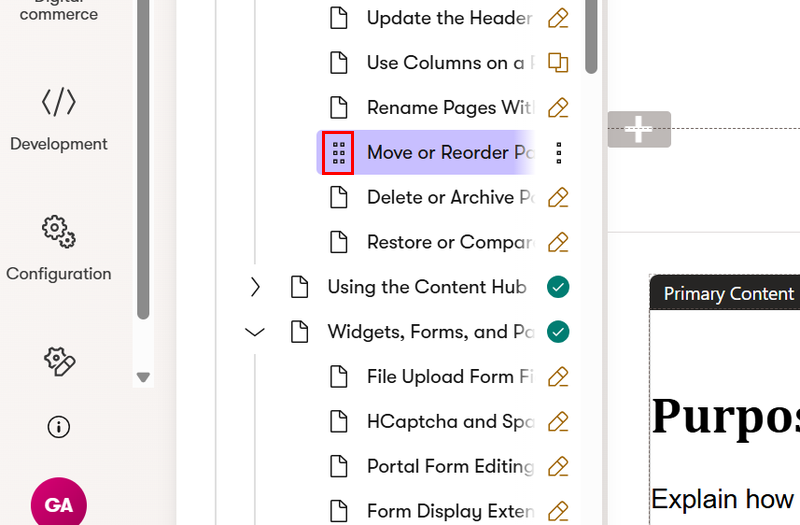
- Hover over the page name until the six-dot drag handle appears on the left of the page row.
- Drag the page up or down within the same group of sibling pages.
- Drop the page where it should appear in the order.
- Confirm the page remains under the same parent page.
- Preview the affected navigation, breadcrumb trail, and section menu before publishing.
Step 3: Move a page under another parent
- Hover over the page you want to move until the six-dot drag handle appears.
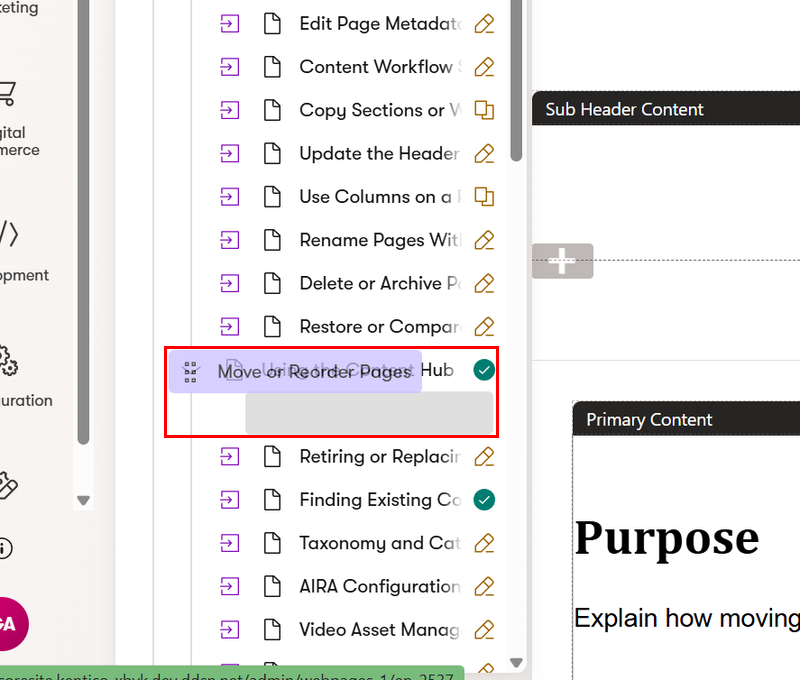
- Drag the page onto the target page if the moved page should become a child of that page.
- To move a page into a collapsed section, drag over the arrow beside that section to expand it, then drop the page in the correct position.
- Confirm the page appears under the correct parent.
- Confirm any child pages moved with the page.
- Open the moved page and check the URLs tab if the page URL matters.
- Preview the page, navigation, breadcrumbs, and any affected section menus.
Step 4: Check URL impact
Moving a page up or down within the same folder or parent does not update the page URL. The page stays in the same location and only its order changes.
Moving a page to a new parent may update the page URL because the page has a new parent path. If the URL changes, check the current URL, former URL behaviour, redirects, and important links before publishing or requesting approval.
Redirects can help protect existing links, but they do not replace proper review. Important menus, buttons, campaign links, PDFs, QR codes, and manually written links may still need to be checked.
Step 5: Review after moving or reordering
- Refresh the content tree and confirm the page is in the correct position.
- Preview the page and any parent or sibling pages that show navigation.
- Check breadcrumbs, section menus, and related links.
- If the page was moved under a new parent, open the URLs tab and confirm the current URL and former URL behaviour.
- Update any manually written links if the surrounding content still refers to the old location.
- Save, preview, and request approval or publish according to the page workflow.
Quality Checklist
- The page is under the correct parent.
- The page appears in the intended order.
- Child pages are still in the correct location.
- The page URL has only changed when a parent change was intended.
- Former URL or redirect behaviour has been checked if the page moved to a new location.
- Navigation, breadcrumbs, section menus, and related links still make sense.
- Important buttons, manually written links, documents, emails, campaign links, and QR codes have been considered.
- The moved or reordered page has been previewed before publishing or requesting approval.
- The change was not published until the result was reviewed.
Related Pages
Rename Pages Without Breaking Navigation
Page Fragments and Redirects (guide not yet available; ask your site administrator)
Login Panel
Training Guidelines
- Demonstrate the difference between dropping a page between sibling pages and dropping a page onto a parent page.
- Ask learners to identify whether a sample task is a reorder or a move before touching the tree.
- Emphasise that moving a published page can affect URLs, breadcrumbs, navigation, and existing links.
- Have learners practise checking the content tree, preview, breadcrumbs, and URLs tab after a move.
- Remind learners not to publish page-tree changes until the new location, URL behaviour, and navigation output have been reviewed.