
0

Thumbnail Gallery Widget
Purpose
This page explains how to use the Thumbnail Gallery widget in Page Builder. A Thumbnail Gallery widget displays a group of images as thumbnails, with options for sorting, filtering, image size, full-size links, and lightbox display.
Authors can build a gallery in two ways. They can select individual image assets for a fixed curated gallery, or they can select a smart folder that dynamically includes images from the image library based on tags and other smart folder criteria.
What this page Teaches
- What the Thumbnail Gallery widget is for and when authors should use it.
- How to select individual image assets from the Content Hub.
- How to select a smart folder that dynamically includes tagged images from the image library.
- How sort order, maximum image count, keywords, and keyword filter settings affect the gallery output.
- How thumbnail width, thumbnail height, full-size linking, and lightbox display affect the reader experience.
- How to preview and check the gallery before requesting publication.
Pro Tip: Use individual images when the gallery must stay fixed. Use a smart folder when the gallery should update automatically as tagged images are added or changed in the Content Hub.
Before you Begin
Confirm the purpose of the gallery before choosing a selection method. A manually selected gallery is best for a small, fixed group of images. A smart folder is best when the gallery should stay current with the image library based on tag-driven rules.
Before configuring the widget, confirm:
- You are editing the correct page in Page Builder.
- The required images exist in the Content Hub.
- The images have clear names, useful descriptions, and appropriate alternative text.
- You know whether the gallery should be fixed or dynamic.
- If using a smart folder, the folder criteria and image tags have been checked.
- You know the intended sort order, maximum number of images, thumbnail size, and lightbox behaviour.
Basic Workflow
Step 1: Open the Thumbnail Gallery Widget
- Open the page in Page Builder.
- Select the Thumbnail Image Gallery widget in the editable area where it appears.
- Open Thumbnail Image Gallery properties using the cog.
- Confirm you are editing the intended widget before changing image selection or display settings.
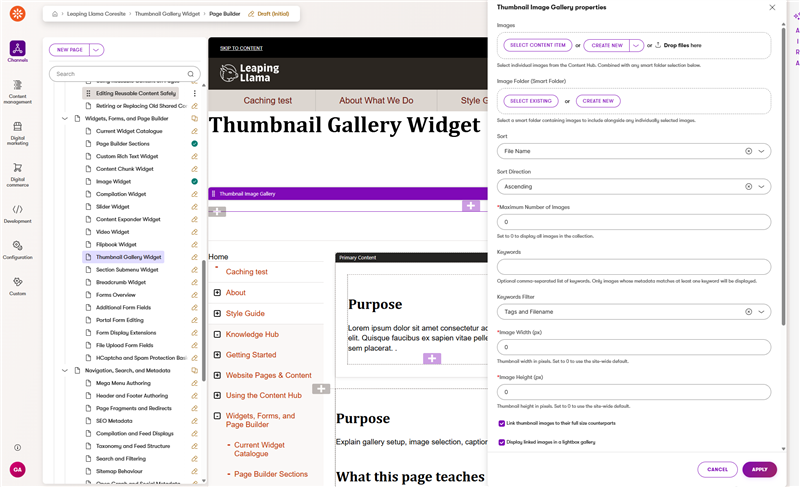 After selecting the configuration cog a popup window to select images and configure the gallery appears
Step 2: Select Individual Images for a Fixed Gallery
- Use the Images field when the gallery should display a fixed set of selected images.
- Select Select Content Item.
- Search or browse the Content Hub image assets.
- Use filters such as content type or taxonomy where they help find the right images.
- Select only the images that should appear in this gallery.
- Check image names, thumbnails, status, and folder location before applying the selection.
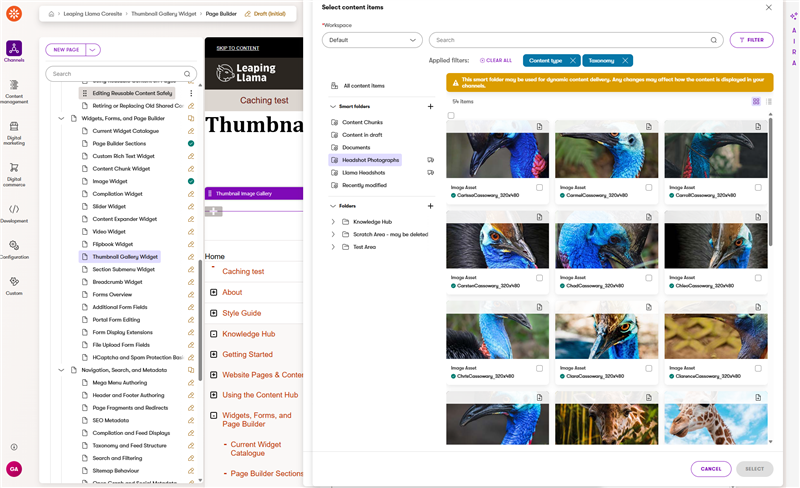 You can select the images one at a time from the content hub.
Step 3: Select a Smart Folder for a Dynamic Gallery
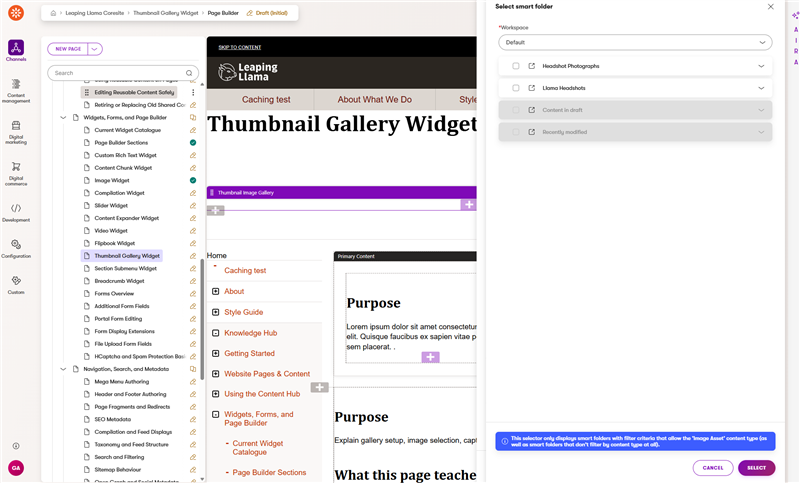 After selecting smart folder you will only see the available dynamic smart folders
- Use Image Folder (Smart Folder) when the gallery should include images dynamically.
- Select Select Existing.
- Choose a smart folder that includes the Image Asset content type.
- Confirm the smart folder is built from the intended tag or taxonomy rules.
- Remember that changing image tags or smart folder rules can change which images appear in the gallery.
Pro Tip: Smart folders can affect dynamic content delivery. If a smart folder is used by a live gallery, changing its criteria or image tags can change the page output without editing the page itself.
Step 4: Combine Selection Methods Carefully
- Use individual images and a smart folder together only when the gallery should include both sets.
- Check for duplicated images if the same asset is selected individually and also appears through the smart folder.
- Keep the gallery focused on one clear topic or visual purpose.
Step 5: Set Sorting, Limits, and Keyword Filters
- Choose a Sort option, such as file name, when the gallery should have a predictable order.
- Choose the Sort Direction, such as ascending or descending.
- Set Maximum Number of Images. Use
0only when the gallery should display all images in the selected collection. - Use Keywords only when the gallery should show images whose metadata matches at least one listed keyword.
- Choose the Keywords Filter, such as tags and filename, to control where the widget checks for keyword matches.
Step 6: Set Thumbnail Size and Lightbox Behaviour
- Set Image Width (px) if thumbnails need a specific width. Use
0to use the site-wide default. - Set Image Height (px) if thumbnails need a specific height. Use
0to use the site-wide default. - Select Link thumbnail images to their full size counterparts when readers should be able to open the larger image.
- Select Display linked images in a lightbox gallery when readers should browse larger images without leaving the page.
Step 7: Apply, Save, and Preview
- Select Apply in the Thumbnail Image Gallery properties panel.
- Save the page draft or working version.
- Preview the page and confirm the expected images appear.
- Check sort order, image count, thumbnail sizing, full-size links, and lightbox behaviour.
- Check desktop and mobile layout.
- Do not publish, submit, schedule, unpublish, or archive unless that action has been specifically requested.
Quality Checklist
- The Thumbnail Gallery widget is in the correct Page Builder editable area.
- The gallery uses the correct selection method: individual images, smart folder, or both.
- Selected individual images are the intended image assets.
- The selected smart folder includes the intended tagged image assets.
- Smart folder criteria and image tags have been checked before use.
- Sort order and sort direction match the gallery purpose.
- Maximum number of images is deliberate.
- Keyword filtering is used only when it improves the gallery result.
- Thumbnail width and height display correctly on desktop and mobile.
- Full-size links and lightbox display work as expected.
- Image names, descriptions, and alternative text are suitable for the gallery.
- No publish, unpublish, archive, or schedule action was taken unless specifically requested.
Related Pages
Image Asset Naming and Replacement
Media and File Asset Management
Login Panel
Training Guidelines
When training authors on this topic, start by showing the difference between a fixed gallery and a dynamic gallery. A fixed gallery uses individually selected images. A dynamic gallery uses a smart folder that is usually driven by tags across the image library.
Demonstrate both selection methods. Select a small set of individual images, then open the smart folder selector and show how image smart folders can be selected.
Ask learners to explain what will happen if a new image is tagged into the smart folder after the page is saved. They should understand that the gallery may update because the smart folder is dynamic.
End the session by previewing the gallery and checking image count, sorting, thumbnail sizing, full-size links, lightbox behaviour, and mobile layout.