
0

Creating Reusable Content Items
Purpose
This page explains how to create reusable content items in the Xperience by Kentico Content Hub. Reusable content is content that can be selected, referenced, or displayed in more than one place without copying the same text or asset into several pages.
Use this process when the content needs to be managed as a shared item, such as a profile, alert, callout, resource, campaign message, image asset, document asset, or other structured content type configured for the site.
What this page Teaches
- How to decide whether content should be a page, reusable content item, or media/file asset.
- How to search before creating a new reusable content item.
- How to choose the correct Content Hub workspace, folder, and content type.
- How to complete required fields, summaries, supporting assets, and tags.
- How to save and check a reusable item before it is selected on a page.
Pro Tip: Do not create reusable content just because it is convenient. Create it when the item has a clear reuse purpose, needs structured fields, or may appear in more than one page, listing, widget, or content selection.
Before you Begin
Start in the Content Hub, not the Pages tree. The Pages tree controls website pages and navigation. The Content Hub stores reusable structured content, images, documents, files, and videos that pages can reference.
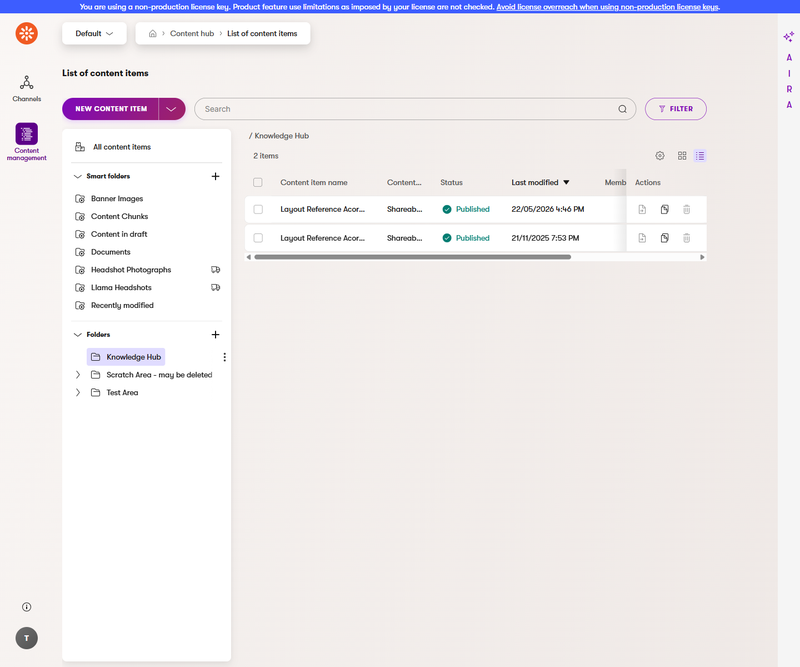
Before creating a new item, confirm these details:
- You are in the correct Content Hub workspace for the site or project.
- You have selected the correct folder for the content.
- You have searched for an existing item with the same topic, name, filename, acronym, or likely synonym.
- You know which content type matches the item you need to create.
- You have the final or approved source content, images, files, and supporting metadata.
Choose the Right Content Surface
| Use this | When the content is | Example |
|---|---|---|
| Website page | A destination with its own URL, navigation position, metadata, and page layout. | A Knowledge Hub training page or landing page. |
| Reusable content item | A structured item that may be selected by pages, widgets, lists, feeds, or other content items. | A reusable callout, profile, alert, resource, or shared content block. |
| Media or file asset | A file that needs to be uploaded, described, tagged, and reused. | An image, PDF, document, download, or video asset. |
Basic Workflow
Step 1: Confirm the Item Should Be Reusable
- Review the content request and identify where the item will be used.
- Decide whether the item belongs in the Content Hub or should be created directly on a website page.
- If the content is only needed on one page and does not use shared structured fields, create or edit the page content instead.
- If the content may be reused, filtered, selected, or maintained separately, continue with the Content Hub workflow.
Step 2: Search Before Creating
- Open the Content Hub.
- Select the correct workspace and folder.
- Search by the exact title, likely short title, old filename, campaign name, acronym, and common synonyms.
- Open any likely match and check the content type, status, tags, and usage before deciding whether a new item is required.
Pro Tip: Duplicates are hard to clean up after pages start using them. If an existing item is close but not identical, check where it is used before editing it or creating a replacement.
Step 3: Select the Correct Content Type
- Use the new content item action in the Content Hub.
- Choose the content type that matches the business purpose of the item.
- Do not choose a content type only because it has similar fields. The content type controls how the item can be selected, displayed, and maintained.
- Confirm the item location before saving so the item is not left at the top level of the Content Hub.
Step 4: Complete the Item Fields
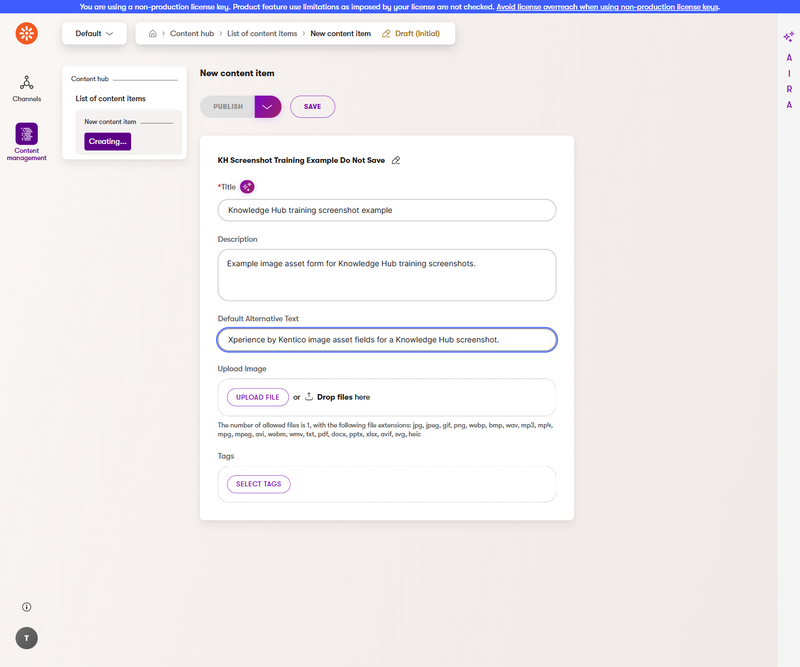
Reusable content should be understandable later from the item name, title, summary, and supporting fields. Complete the required fields first, then complete any recommended fields that help authors find and use the item correctly.
| Field or setting | What to check |
|---|---|
| Content item name | Use a clear internal name that makes the item easy to find in the Content Hub. |
| Title or display name | Use the visible title that should appear to authors or visitors when the item is displayed. |
| Summary or description | Explain what the item is for, especially if it may appear in selectors, listings, or search results. |
| Main content fields | Complete the required body, message, resource, profile, or asset fields according to the content type. |
| Images or files | Select approved Content Hub assets and make sure image alt text or document descriptions are complete. |
| Tags or taxonomy | Add the tags needed for filtering, smart folders, lists, search, or reporting. |
| Status | Confirm whether the item is saved as a draft, published item, or working version before using it on pages. |
Step 5: Save and Reopen the Item
- Select Save.
- Confirm the item status shown by Xperience by Kentico.
- Reopen or refresh the item.
- Check that the title, required fields, assets, tags, and folder location were saved correctly.
- Do not publish unless the publishing step has been specifically requested and approved.
Step 6: Check How the Item Will Be Used
- If the item already existed, review where it is used before changing it.
- If the item is new, select it from the relevant page, widget, or structured field only after the item has been checked.
- Preview the page or component that uses the item.
- Confirm the reusable item appears with the correct title, text, image, file, tags, and link behaviour.
Quality Checklist
- The item was searched for before a new one was created.
- The item is in the correct Content Hub workspace and folder.
- The selected content type matches the item purpose.
- The content item name is specific, searchable, and not a temporary label.
- All required fields are complete.
- Summaries, descriptions, alt text, and captions are useful to authors and visitors.
- Images, documents, files, and videos use approved Content Hub assets.
- Tags or taxonomy are complete where they affect listings, filters, search, or smart folders.
- The item status is understood before it is selected on a page.
- The item has been previewed or checked in the place where it will be used.
Related Pages
Finding Existing Content Before Creating New Content
Using Reusable Content on Pages
Editing Reusable Content Items
Media and File Asset Management
Image Asset Naming and Replacement
Document and File Asset Naming (guide not yet available; ask your site administrator)
Login Panel
Training Guidelines
When training authors on this topic, demonstrate the difference between a website page, a reusable content item, and a media/file asset before opening the create screen. Authors should understand the decision before they learn the button sequence.
Ask learners to practise searching for an existing reusable item before creating a new one. Emphasise that the Content Hub is shared: changing a reusable item can affect several pages, and creating duplicates makes future maintenance harder.
During the exercise, have learners create or inspect a safe training item, complete the required fields, add a useful summary, choose tags where available, save, reopen, and confirm the saved state. End the session by asking each learner to explain where the item would be used and how they would check it before publication.