
0

Rename Pages Without Breaking Navigation
Purpose
This page explains how to rename a page in Xperience by Kentico without accidentally breaking navigation, links, breadcrumbs, search results, or campaign URLs.
What this page teaches
- Rename the right field for the intended outcome.
- Keep navigation labels short and page titles descriptive.
- Treat URL slug changes as link-impacting changes.
A page can have several names or labels. The name authors see in the content tree, the heading visitors see on the page, the text shown in navigation, and the page URL can be controlled by different fields. Changing the right field helps you improve the page name without making unnecessary URL or navigation changes.
Before You Begin
- Open the Xperience by Kentico administration interface.
- Go to the Channels or Pages area for the correct website channel.
- Find the page in the content tree.
- Confirm whether the page is a draft, a new version, or already published.
- Know what you are trying to change: the author-facing label, the public heading, navigation text, or the URL.
Pro Tip: If the current URL is already being used in menus, emails, documents, search results, social posts, or campaign links, avoid changing the URL unless there is a clear reason. Rename the label or title instead.
Subtopics
- Page label: the name shown in the Kentico content tree and often used by navigation controls.
- Page Title: the title value used by the page template, commonly displayed as the main H1 heading.
- Navigation text: the wording visitors may see in menus, breadcrumbs, listing pages, or section navigation.
- URL slug: the web address segment for the page. Changing this can affect links and redirects.
- Preview checks: the review steps to complete before publishing a renamed page.
Choose What Needs To Change
Before editing, decide which outcome you need. This prevents accidental changes to the page address or navigation structure.
| Need | Change this | Usually affects | Risk level |
|---|---|---|---|
| The page is hard to find in the content tree. | Page label. | Admin tree and sometimes navigation labels. | Low, if the URL is not changed. |
| The visible page heading is unclear. | Page Title. | Main page heading and template title output. | Low, if the URL is not changed. |
| The menu or breadcrumb text is too long. | Navigation label or page label, depending on the page setup. | Menus, breadcrumbs, section navigation, or listings. | Medium. Preview navigation after saving. |
| The web address is wrong or misleading. | URL slug or URL settings. | Public URL, links, redirects, search results, and campaign references. | High. Check redirects and links before publishing. |
Change The Page Label
Use the page label when the page name needs to be clearer for authors, or when the label shown in navigation needs to be shorter or more useful.
- Open the page in the Xperience by Kentico administration interface.
- Go to the Content tab.
- Find the page label at the top of the editing panel.
- Select the pencil icon beside the page label.
- Enter the new label.
- Save the page or working version.
- Check the content tree to confirm the label changed.
- Preview the page and check menus, breadcrumbs, and section navigation where the page appears.
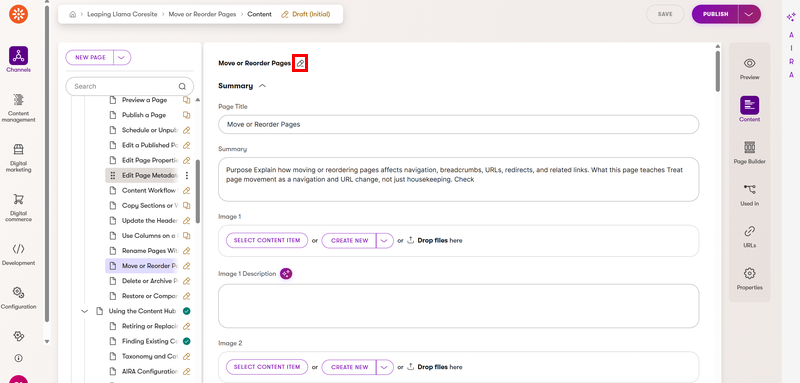
Good page label examples
- About Us instead of About What We Do And Who We Help for a top-level menu item.
- Annual Reports instead of Reports when several report types exist.
- Contact instead of Get In Touch With Our Team for a short navigation label.
Change The Page Title
Use the Page Title field when the visible page heading needs to be clearer for visitors. The Page Title is usually more descriptive than the navigation label because it has more room on the page.
- Open the page in the Xperience by Kentico administration interface.
- Go to the Content tab.
- Open the Summary section if it is collapsed.
- Update the Page Title field.
- Save the page or working version.
- Open Preview.
- Confirm the main heading reads clearly and still matches the page content.
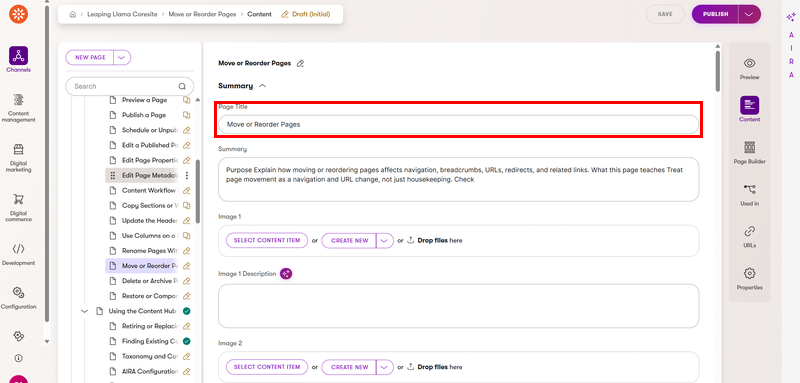
Good Page Title examples
- About What We Do for a page whose navigation label is About.
- Apply For A Community Grant for a page whose navigation label is Community Grants.
- Download Annual Reports And Financial Statements for a page whose navigation label is Annual Reports.
Be Careful With URL Slug Changes
The URL slug is the part of the web address that identifies the page. For example, in /knowledge-hub/pages-content/rename-pages, the final part rename-pages is the slug for this page.
Changing the page label or Page Title should not change the URL. Changing the URL slug is different. It can affect links from menus, other pages, search engines, emails, PDFs, campaign materials, QR codes, and bookmarks.
Pro Tip: Treat a URL change as a separate task. Before changing the URL, check whether the old address needs a redirect and whether any internal links should be updated.
Before changing a URL slug
- Confirm the page really needs a new web address.
- Check whether the page is already published.
- Check whether the page is linked from menus, related content, buttons, documents, emails, or campaign pages.
- Decide whether the old URL needs a redirect to the new URL.
- Ask a site administrator if you are not sure how redirects are managed for this site.
Check Navigation After Renaming
After renaming a page, preview the page and check the places where visitors may see the page name. A label that works in the content tree may still be too long for a menu, breadcrumb, card, or section listing.
- Open the page preview.
- Check the main page heading.
- Check the top navigation, side navigation, breadcrumbs, and section menus where the page appears.
- Check any listing pages or cards that display the page title or summary.
- Check important links that point to the page.
- If the URL changed, test the old URL and confirm it redirects or is handled as agreed.
- Preview on desktop and mobile if the page appears in a menu or narrow layout.
Quality Checklist
- The page label is clear for authors.
- The navigation label is short enough for menus, breadcrumbs, and section navigation.
- The Page Title reads well as the visible page heading.
- The page URL has not changed unless a URL change was intended.
- If the URL changed, redirects and internal links have been reviewed.
- The page has been previewed after saving.
- The renamed page still appears in the correct place in the content tree.
- The renamed page still makes sense beside sibling pages.
- The published version was not changed until the rename was reviewed and approved.
Login Panel
Training Guidance
Explain page title, navigation label, and URL slug differences, including redirect checks after renaming.