
0

Editing Reusable Content Safely
Purpose
This page explains how to edit reusable Content Hub items without causing unexpected changes across the site. Reusable content can appear on more than one page, inside widgets, in lists, or as part of another structured content item.
Safe editing means checking where the item is used, deciding whether to update the existing item or create a replacement, saving the change carefully, and previewing affected displays before the change is published or approved.
What this page Teaches
- Why editing reusable content can affect more than one page.
- How to check a reusable item's current fields, status, and known usage.
- How to decide whether to edit the existing item or create a replacement item.
- How to save the change without publishing or scheduling accidentally.
- How to preview affected pages and widgets after the edit.
Pro Tip: A small correction can be safe, but a change to meaning is rarely small. If the edit changes the message, audience, image, file, date, link, or tags, check where the item is used before saving the change.
Before you Begin
Open the item from the Content Hub and confirm you are working in the correct workspace and folder. Do not edit a reusable item from memory or from an old link without checking that it is still the correct item.
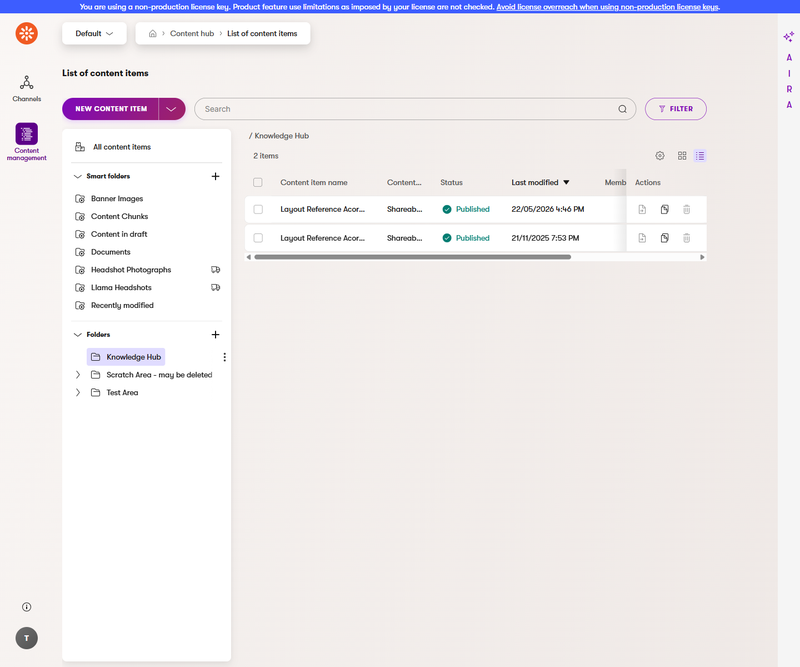
Before making a change, confirm:
- The content item name, title, type, folder, and status match the item you intended to edit.
- You understand what the item is used for and whether it may appear on more than one page.
- You know whether the change is a correction, an update, or a new version for a different purpose.
- You have the approved replacement text, image, file, link, or tags.
- You know whether the item should stay as a draft, working version, or published item after the change.
Edit or Create a Replacement?
| Situation | Recommended action | Reason |
|---|---|---|
| Fixing a typo, broken punctuation, or minor formatting issue | Edit the existing item | The meaning and usage remain the same. |
| Updating a phone number, date, document, or link that should change everywhere | Edit the existing item after checking usage | The shared item is meant to keep every display consistent. |
| Changing the message, audience, offer, image meaning, or call to action for only some pages | Create a replacement item | Other pages may still need the original version. |
| Retiring old content while keeping a record or older pages stable | Create a replacement or follow the retire-content workflow | Deleting or overwriting shared content can break existing page context. |
Basic Workflow
Step 1: Open and Identify the Reusable Item
- Open Content Hub.
- Select the correct workspace and folder.
- Search for the item by title, internal name, old name, filename, acronym, or likely synonym.
- Open the item and confirm the content type, title, folder, and status.
- If several items look similar, stop and compare them before editing.
Step 2: Review the Fields That May Display on Pages
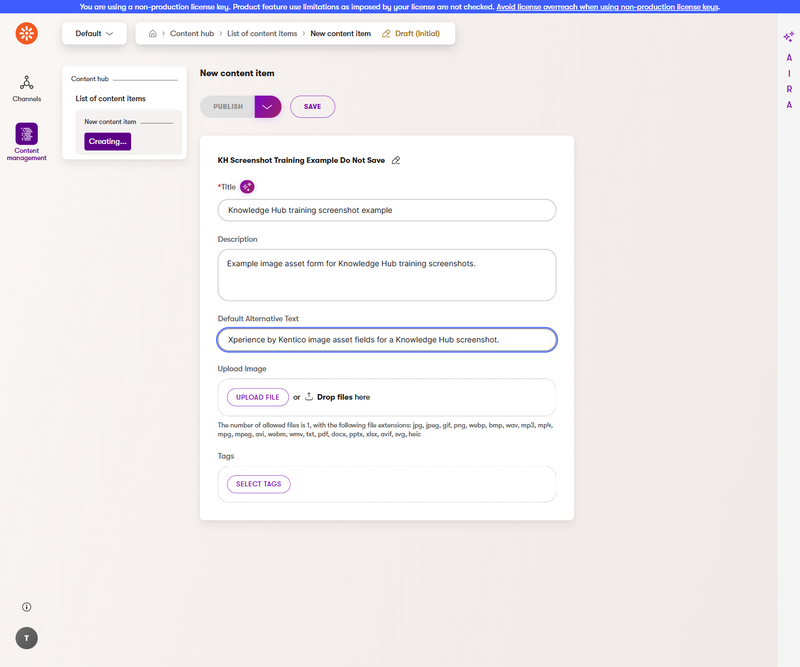
- Check the title, summary, description, body fields, image, file, link, tags, and any other fields shown by the item type.
- Identify which fields will change and which pages or widgets may display those fields.
- Check whether the proposed change affects visitor-facing meaning, not just internal housekeeping.
Step 3: Check Where the Item Is Used
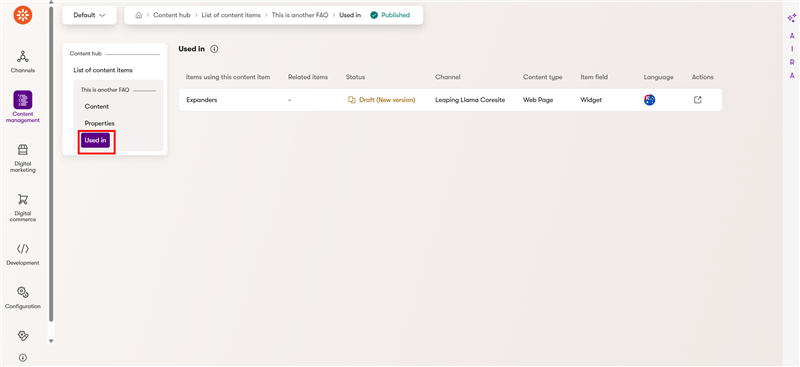
- Open the item's usage or Used in information when available.
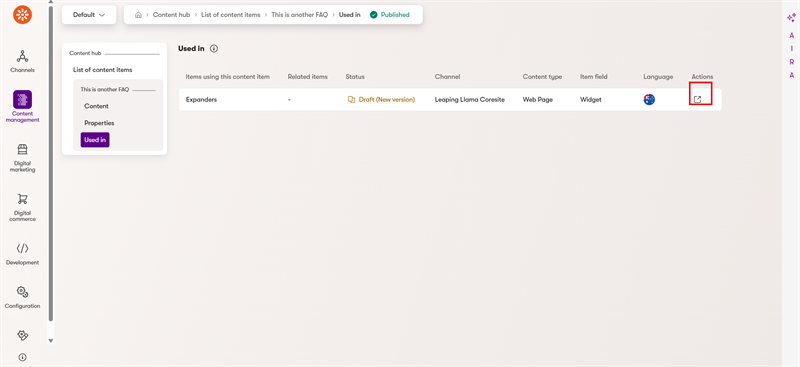
- Review the pages, widgets, or content items that reference the reusable item.
- Open important affected pages in preview or admin view so you understand the context.
- If the item appears in several different contexts, decide whether the existing item should be edited or a replacement should be created.
Pro Tip: If a reusable item is used in many places, write down the affected pages before editing. This gives you a clear preview checklist after the change is saved.
Step 4: Make the Smallest Safe Change
- Edit only the fields that need to change.
- Keep the item name, title, summary, tags, and assets consistent with the new content.
- If replacing an image, file, or video, make sure the new asset has the correct name, metadata, alt text, caption, and approval status.
- If changing tags or taxonomy, consider whether lists, filters, smart folders, or feeds depend on those tags.
Step 5: Save Without Publishing Accidentally
- Select Save.
- Confirm the item status shown by Xperience by Kentico.
- Do not publish, submit, schedule, unpublish, archive, or delete unless that action has been specifically requested.
- Refresh or reopen the item and confirm the edited fields persisted.
Step 6: Preview Affected Displays
- Open the affected page or widget preview.
- Check the reusable content in its page context.
- Confirm headings, summaries, images, links, buttons, documents, videos, and tags still make sense.
- Check desktop and mobile widths if the item appears in a card, listing, column, or narrow area.
- If the change breaks the context on any page, revert the edit if appropriate or create a replacement item and select it only where needed.
Quality Checklist
- The item was opened from the correct Content Hub workspace and folder.
- The item title, type, status, and folder were checked before editing.
- Known usage was checked before changing visitor-facing fields.
- The author decided whether to edit the existing item or create a replacement.
- The change is limited to the fields that need updating.
- Images, files, videos, links, tags, and taxonomy still support every affected display.
- The item was saved and reopened or refreshed to confirm the change persisted.
- Affected pages or widgets were previewed after the edit.
- No publish, submit, schedule, unpublish, archive, or delete action was taken unless specifically requested.
- Any unresolved risk was recorded for review before publication.
Related Pages
Finding Existing Content Before Creating New Content
Creating Reusable Content Items
Using Reusable Content on Pages
Media and File Asset Management
Login Panel
Training Guidelines
When training authors on this topic, demonstrate a safe edit and an unsafe edit. A safe edit might be a typo correction. An unsafe edit might change the message, image, audience, or link for an item that appears on several pages.
Ask learners to inspect a reusable item, check where it is used, and decide whether to edit it or create a replacement. The main training outcome is judgement: learners should understand that shared content needs impact checking before it is changed.
End the session with a preview exercise. Learners should save a draft change in a safe training item, reopen it, preview at least one affected page, and explain what they would check before requesting publication.