
0

Prepare for Authoring
Purpose
Make the right change in the right place with the best outcome.
Provide the pre-flight checklist: objective, page type, source copy, images, links, metadata, approvals, and publish timing.
What this page teaches
- Define the content objective before opening the editor.
- Collect copy, assets, links, metadata, and approval details before building.
- Confirm the page type, parent location, and publication timing.
Quick Checklist
- Keyword research
- Copy preparation
- Copy optimisation for SEO
- Copy optimisation for accessibility compliance
- Image preparation & naming for SEO
- Image alt text and caption crafting
- Collate page images in a folder
- Find or create Image Assets in Content Hub
- Consider multimedia, infographics or FAQ for improved performance
- Prepare hyperlinks, both internal and external
- Prepare the metatitle and metadescription
- Know the page publish date
- Start your authoring
Identify the Keywords for the page
Ask yourself
- What is the page about?
- Why are you posting it?
- How might you find it if you were searching?
Put those words into a keyword research tool and find other keywords like it that are searched for frequently.
Make an assessment of how difficult the keywords will be to obtain. Most tools help you do this
Create a short – 8-10 keyword or phrase target list for the page.
Handy hints
- Traffic begets more traffic, so look for the highest traffic opportunities first
- Then focus on quality of traffic with long-tail-keywords
- Make sure you have a promotion strategy for the page
Analyse your competitors performance
There may be a possibility to acquire keywords from your competitors. But at least understand their strategies.
Prepare the Copy
When preparing content copy for your page you have a number of considerations to achieve optimal communication and marketing outcomes for your pages more than just the messaging or information conveyance. This includes
- Accessibility (enabling vision and individuals with cognitive differences to engage fully)
- SEO (search engine optimisation), and of course
- Quality
Sometimes you have to balance the different considerations for the purpose of the page.
Page Titles – Heading 1 (H1)
SEO
- Include primary search terms in the page title
- Make the page title is unique across your whole website
Accessibility
- Only use one H1 per page
- Make it Informative
- Ensure it is Unique
Quality
Remember H1 is included in Menus and other navigation – so it needs to make sense to site users.
Heading Hierarchy
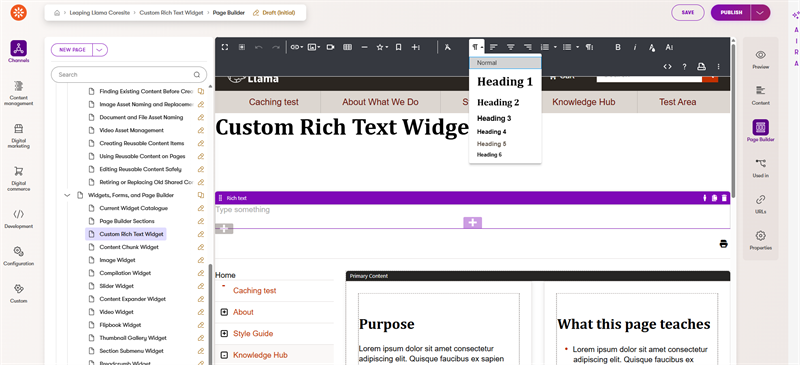
The page title supplies the H1. Start the article body with Heading 2, then use Heading 3 for a subsection and Heading 4 only when another level is needed. Choose a level for its place in the content structure, not its visual size.
Use the rich text editor's Paragraph Format menu to apply headings. Write short, descriptive headings that help readers scan the page.
Copy
SEO
- Write enough to answer the reader's question clearly; do not add text just to reach a word count.
- Include meaningful search terms
- Use a mix of similar or related words / search terms
- Lists improve search
- Using different variants of concept names and their acronyms
Accessibility
- Aim for a reading age of 12
- Write in short, clear sentences and paragraphs
- Avoid using unnecessarily complex words and phrases.
- Expand acronyms on first use
- Use list formatting as appropriate – lists increase readability
Quality
- What is the purpose of the page? Reread for purpose of the page to ensure you are achieving it.
- Is the spelling correct and is it well written?
Prepare Images in Content Hub
Use Content Hub image assets for reusable website images in this installation. Search for an existing asset before creating another copy.
- Open Content management > Content hub and select the Default workspace. Check that you are in the intended folder, then use Search to find an existing image.
- Open a matching item and inspect its image, title, alternative text, and status. Check Used in before replacing a shared image: the change can affect other pages.
- If a new asset is needed, prepare a web-ready file using the dimensions required by the page layout. Compress it without making text or important detail unreadable. Use a short descriptive filename, such as llamas-r-us-training-room.jpg. Keep source originals in your approved source archive or digital asset management system.
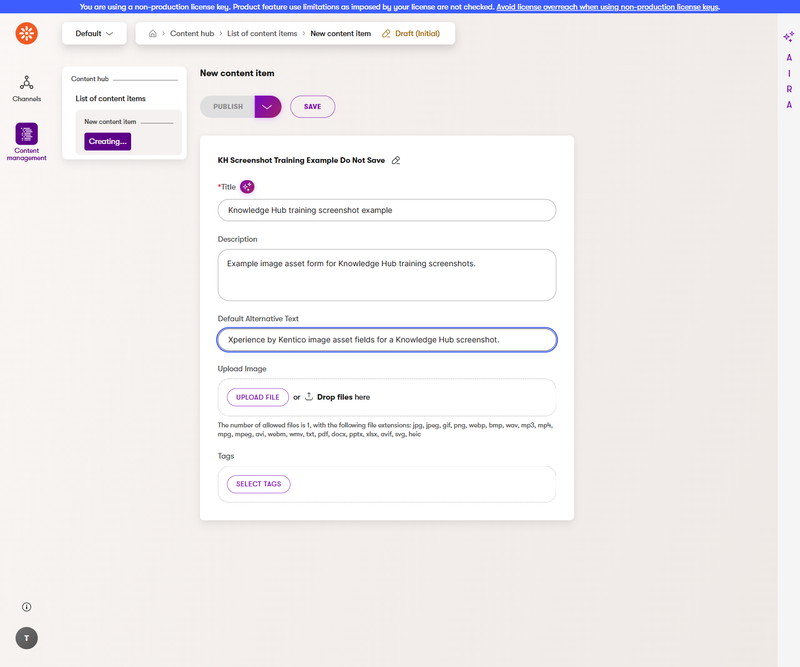
- Select New content item, enter a descriptive content item name, choose its Location, select Image Asset, and select Continue.
- Complete Title, Description, and Default Alternative Text. Add the prepared file using Upload file under Upload Image. Use Select tags where your project has agreed tags.
- Select Save, reopen the item, and check its file and metadata. A saved draft is not a published asset; include asset publication in the agreed release workflow.
- When building the page, select the existing Content Hub image through the relevant image selector. Do not paste a local drive path or an editor preview URL into the page. Preview the page and confirm the image loads at the intended size.
Write useful alternative text and captions
Describe the image information the reader needs in this context. Do not add unrelated keywords or repeat surrounding text unnecessarily. For a decorative image, use the decorative-image treatment supported by the page component. Review the default alternative text when reusing an image in a different context.
Use a caption when it adds explanation, attribution, or an instruction. Check that the image is approved for use, fits the organisation's visual style, and contains no private information. For more detail, see Image Asset Naming and Replacement.
Video
SEO
- Use video when it helps explain the topic or demonstrate a task.
- There are segments in Search Engine results dedicated to video.
- Transcripts improve traffic as they are rich in keywords.
Accessibility
- Ensure that video is not flashing
- Ensure that it has subtitles and if not, then a transcript
- Ensure that there are video controls so a user can pause or play
Quality
If you are concerned about transcripts changing the layout of the page it is acceptable to link to a separate page containing the transcript, as long as the link is clearly marked.
Hyperlinks
SEO
- Include meaningful descriptive words in your link name. You can include keywords in your link text.
- Link to respected sources only
- Link to other relevant content on your site. Google follows link paths
Accessibility
- Avoid using ambiguous link text, such as ‘read more’ or ‘click here’.
- Instead, write link text so that it describes the content of the link target.
- Indicate relevant information about the link target, such as document type and size, for example, ‘Proposal Documents (PDF, 2MB)’.
Forms
SEO
In many websites content can be hidden behind forms. If you need to fill out a form to get to keyword rich items then Google can not read those words e.g. a multipart form that ends in different options – you want the final version of the form to be available to the search engine crawler by other means for maximum impact. Otherwise craft a great piece of content to go with your form.
Accessibility
Ensure that any instructions, guidance, and error messages are clear, easy to understand, and avoid unnecessarily technical language.
Prepare Page Metadata
Prepare a concise, specific page title and description that accurately describe the page. In the page's Content tab, open Meta Tags and complete Metadata Page Title and Metadata Page Description. Check these separately from the visible page heading.
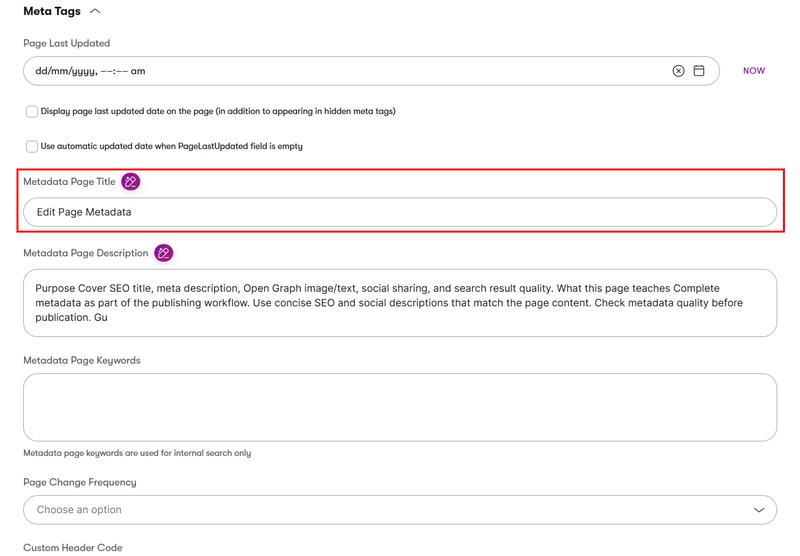
See Edit Page Metadata for the other metadata fields and their purpose.
PDF documents
PDFs can be useful for formal downloads, print-ready documents, policies, forms, brochures, and material that must preserve a fixed layout. They should not be the default format for content that people are expected to read, search, share, or reuse on the website.
Where possible, turn important PDF or flyer content into native web page content. A long document can be broken into smaller stories, blog articles, news articles, FAQs, training notes, or topics of interest. Shorter reusable sections can also be created as content fragments and surfaced on other pages where they help the reader complete a task.
SEO
Do not rely on PDFs, images, or attached documents as the only place where important words appear. Search engines and site search are much more reliable when the key message is available as normal HTML text on the page.
If a PDF is uploaded, the page around it should explain what the document is, who it is for, why someone should download it, and what important topic or service it relates to. This gives search engines and users enough context before they open the file.
Avoid placing important headings, dates, calls to action, contact details, prices, eligibility rules, or instructions only inside images. If those words appear in an image, repeat the essential information in the surrounding page text as well.
Accessibility
PDFs and image-based documents can be harder for people using screen readers, keyboard navigation, mobile devices, browser zoom, translation tools, or high-contrast settings. Scanned PDFs are especially difficult because the text may behave like a flat image rather than readable content.
Before uploading a PDF, consider whether the same content would work better as a web page. If a PDF must be used, make sure it has a clear file name, readable text, meaningful headings, accessible links, correct reading order, and alternative text for important images. Avoid uploading scanned documents unless they have been OCR processed and checked.
Quality
Only upload documents that are final, current, and approved for public use. Check that the file does not contain outdated branding, old dates, broken links, internal comments, private information, or hidden document metadata that should not be published.
Use a plain, descriptive file name that explains the document without relying on the page around it. For example, use a name that includes the topic and year where relevant, rather than a vague name like final-version-v3.pdf.
After adding a PDF or document link, preview the page and test the download. Confirm that the link text clearly describes the document, the file opens correctly, and the page still provides enough information for users who cannot or do not want to open the file.