
0

Preview a Page
Purpose
Show preview mode, device checks, unpublished content preview, and what to inspect before requesting approval.
What this page teaches
- Use preview before approval or publish.
- Check desktop and mobile presentation.
- Inspect content, media, links, layout, metadata, and embedded reusable content.
Preview lets authors and reviewers check how a draft or saved version will look before it is published. Use preview to confirm layout, links, headings, images, forms, metadata, and reusable content before requesting publication.
Preview is not the same as publishing.
Basic workflow
How to Preview a Page
- Select the page of interest in the content tree.
- If you have unsaved changes to the page, save the changes first.
- Open preview mode from the page editor using the eye in the top right corner.
The preview reflects the latest saved draft, so if you forgot to save your draft the changes will be lost.
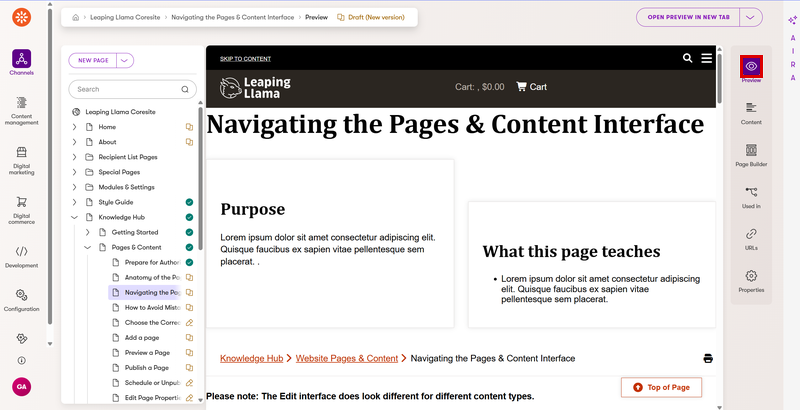 Preview is accessed via the eye tab at the top right
You can quickly view the content in the frame, but this is not always the right screen size. If you are testing responsiveness it is better to open in a new tab.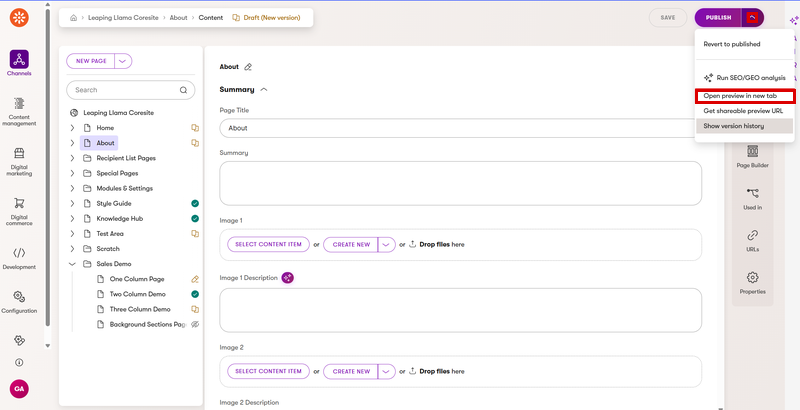 You can open preview in a new tab from this drop down in the publish interface.
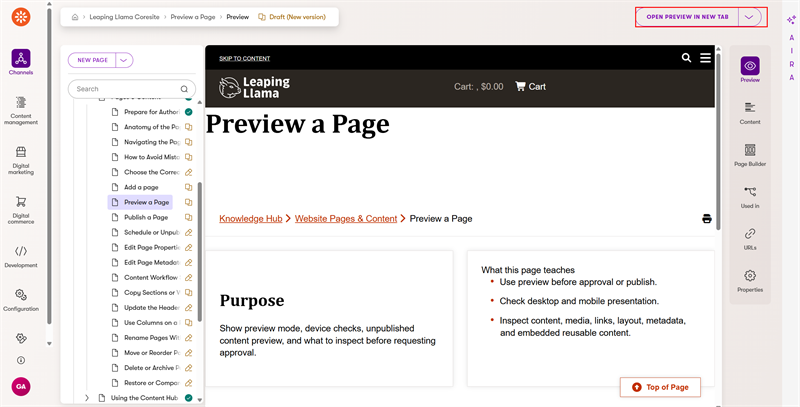 You can also access preview in a new tab from the preview interface here.
Once you have the page in a new browser then allows you to change the screen dimensions to emulate different screen sizes. WE recommend a tool called Window Resizer a chrome plugin
- Check desktop layout first for content completeness.
- Check mobile or narrow preview for stacking and readability.
- Click key links, CTAs, downloads, forms, and media.
- Return to page builder tab to fix issues before publishing or seeking approval.
How to Generate a Preview link to a Page
Who can see a preview depends on how the preview is opened.
Users with Kentico access can preview from the administration interface with a deep link by copying the URL that you see in the admin.
 Copy the deep link for users who have admin access.
If a shareable preview URL is generated, people with that link may be able to review the page according to the site’s preview setup. Do not treat preview links as public publishing links.
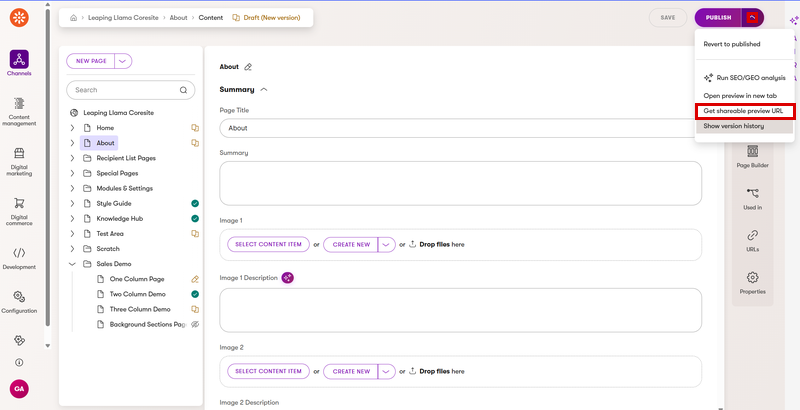 If you want to share the URL with others (e.g. your boss) with out them having to login you can get a shareable preview link here
Quality checklist
- The preview reflects the latest saved draft.
- Desktop and mobile layouts are readable.
- Links and CTAs work.
- Images, videos, downloads, and reusable content display correctly.
- No placeholder content remains.
Login Panel
Training Guidance
This training note belongs to the Pages & Content workflow. It should help authors make the right change in the right place, then verify the result before publishing.
Show preview mode, device checks, unpublished content preview, and what to inspect before requesting approval.
Home
- About
-
Research
-
Our research
- Col Reynolds Fellowships
- Our research investment
-
Currently funded projects
- PhD Scholarship recipient, Jasmine Jin
- Dr Lee Wong
- Professor David Eisenstat
- Dr Jordana McLoone
- Professor Simon Conn
- Professor Bryan Day
- Dr Evangeline Jackson
- Dr Michelle Tennant
- Dr Ryan Cross
- Dr Emmy Fleuren
- Dr Noemi Fuentes-Bolanos
- Ms Rachel Edwards
- PhD Scholarship recipient, Lorna McLeman
- PhD Scholarship recipient, Bryce Thomas
- PhD Scholarship recipient, Chelsea Valentin
- Professor Rishi Kotecha Interfant 21 Clinical Trial
- Professor Matt Dun
- Dr Kate Vandyke
- Professor Richard D'Andrea
- Dr Aaminah Khan
- Dr David Mizrahi
- Dr Karin Plummer
- Dr Kenny Ip
- Dr Katherine Pillman
- Dr Teresa Sadras
- Dr Noa Lamm-Shalem
- Dr Rachael Lawson
- Dr Marion Mateos
- Dr Joseph Yuan-Mou Yang
- Jacqueline Hunter
- Dr Hannah Walker
- Dr Tessa Gargett
- Dr Klaartje Somers
- Dr Jacqui McGovern
- Dr Elizabeth Connolly
- Associate Professor Geoff McCowage
- Professor Nick Gottardo
- Comprehensive analysis of gene changes in childhood cancer patients and their parents
- Col Reynolds Fellowships, Megumi Hui Ai Lim
- Towards safe and effective immunotherapy for soft tissue sarcomas
- Training Natural Killer cells for Immunotherapy for children, adolescent, and adults with sarcoma
- Col Reynolds Fellow, Philipp Graber
- A new and effective combination therapy for children with brain cancer
- Utilising cord blood-derived Natural Killer cells to prevent post-transplant relapse in Childhood Leukaemia
- Identification of Megakaryocyte and Platelet Bone Marrow Niches
- Clinical translation of CAR T cell therapy for the treatment of sarcoma
- RECOVER – Responding to late effects in survivors of childhood cancer
- Preclinical drug-testing to evaluate PARP inhibitors for infants with acute lymphoblastic leukaemia
- (GENIE) A combined GENetic and follicle density risk prediction approach to identifying InfErtility risk in paediatric cancer patients
- Pharmacogenetics real-time implementation of rare-toxicity predisposition (PRIORITY-P)
- iBounce digital health educational program
- Targeting the thioredoxin system as a novel strategy for DIPG
- Identification of a sarcoma molecular prognostic and therapy resistance signature
- Pharmaco-phospho-proteo-genomics of paediatric high-grade glioma (HGG)
- Reducing long-term side-effects of chemotherapy in cancer survivors
- Exploiting the DNA damage response in paediatric sarcoma
- Detecting chemotherapy resistance and sequencing residual malignant tissues in sarcoma treatment
- Targeting altered serine metabolism in MLL-rearranged paediatric acute myeloid leukaemia (AML)
- Enhancing radiation therapy to improve survival outcomes for children with aggressive brain cancer
- Identifying the right sarcoma treatment at the right time
- National Tumour Biobanking Network
- Targeting IL-23 in bone and soft tissue sarcomas
- Enhanced polyamine depletion for aggressive childhood cancers
- Personalised targeted therapy for adolescent and young adult medulloblastoma patients
- Application of gene-silencing nanodrugs to inhibit medulloblastoma growth
- Reboot-Kids
- Pre-clinical anti CD-47 therapy
- Targeting Polo-like kinase 1 as a novel therapeutic opportunity for diffuse intrinsic pontine glioma
- The NORTH Trial
- "Cage fighting" with neuroblastoma
- Intraoperative immunotherapy to prevent relapse in soft tissue sarcoma
- Using smarter new drugs to reduce long term debilitating side effects for aggressive childhood brain
- International clinical trials support
- Personalised Medicine: Zero Childhood Cancer
- Exploiting CDK4/6 inhibition to treat medulloblastoma
- Targeting the NAD pathway as a new therapeutic strategy for high-risk leukaemia in children
- IntReALL-HR
- Understanding the genetic basis of chemotherapy-induced cardiomyopathy
- New state-wide Children’s and Adolescent/Young Adult Cancer Clinical Trials Unit
- Pre-clinical development of novel immune therapy for paediatric cancers
- Investigating drug resistance and genetic changes in Ph-like ALL in adolescents
- Epigenetic targeted therapy in DIPG
- Impact of treatment on late effects and survivorship on childhood cancer survivors
- Developing treatments for vincristine-induced neuropathy
- Development of a non-invasive diagnostic and prognostic assay for adolescent testicular cancer
- MicroRNA drugs for the treatment of neuroblastoma
- 3D printers and mini-brains
- Overcoming therapeutic resistance in high risk ALL using novel BH3 mimetic
- Using targeted chemotherapies to reduce intensity of radiotherapy in medulloblastoma
- New therapies for incurable paediatric brain tumours
- Combinational therapeutics in high-risk infant acute lymphoblastic leukaemia
- Reversing glucocorticoid resistance in paediatric acute lymphoblastic leukaemia – a novel epigenetic
- Ready, Steady, School
- Targeting FACT to inhibit MYCN-driven transcription in neuroblastoma
- Exploring better and safer treatments for osteosarcoma
- Therapeutic targeting transcriptional addiction in paediatric leukaemias
- Synthetic retinoid therapy for diffuse intrinsic pontine glioma
- Development of CAR T cell immunotherapies for paediatric patients
- Development of personalised medicine approaches to treat medulloblastoma
- Novel therapies for diffuse intrinsic pontine glioma (DIPG)
- Improving chemotherapy regimens for medulloblastoma
- Next gen sequencing to identify gene mutations in childhood cancer patients
- New therapeutic targets for paediatric medulloblastoma
- Novel targets to treat medulloblastoma
- Personalised disease monitoring in childhood AML
- Re-engage
- Improving treatments for infant acute lymphoblastic leukaemia (iALL)
- International DFMO clinical trial
- Drug discovery project
- Treatment of solid paediatric cancers with tropomyosin targeted therapy
- Tumour Bank at CHW
- Developing novel immunotherapies for childhood blood cancers
- Stathmin regulation of microRNA expression in neuroblastoma cells
- Bio-banking and personalised medicine software platform
- Improving the cure rates of childhood brain cancer
- Switching off genes
- Clinical trial of new treatment for relapsed neuroblastoma
- Evaluating potential side effects of anti-tropomyosins
- Cytoskeletal regulation of adhesion dynamics in neuroblastoma metastases
- Our funding
- Our impact
- Our resources
-
Our research
- Ways to help
- Corporate partnerships
-
Shop
-
Donate or buy a Bear
- Paddy's Presents Bundle
- Christmas Bear
- Magical Christmas Bear Bundle
- Christmas Full Bear Bundle
- Baby Activity Bear
- Luna Unicorn
- Sammy Superhero Bear
- Ollie Puppy
- Omega Sleepy Bear
- Deedee Dinosaur
- Hospital Favourites Bear Bundle
- Baby Bundle
- Boy and Girl Bear Bundle
- Fantasy Bear Bundle
- Ollie Puppy Matching Sock Bundle
- Full Bear Bundle
- Accessories
- Apparel
- Shopping Cart
-
Donate or buy a Bear
- Style Guide
-
Knowledge Hub
- Getting Started
-
Website Pages & Content
- Prepare for Authoring
- Anatomy of the Page
- Navigating the Pages & Content Interface
- Add a page
- Choose the Correct Page Type
- Editable Page Components
- Preview a Page
- Publish a Page
- Schedule or Unpublish Content
- Edit a Published Page
- Page Properties
- Edit Page Metadata
- Copy Sections or Widgets between Pages
- Update the Header Image of a Page
- Use Columns on a Page
- Rename Pages Without Breaking Navigation
- Move or Reorder Pages
- Restore or Compare Older Versions
- Page Templates
-
Using the Content Hub
- Adding Videos
- Adding Files
- Adding Documents
- Images - Addition and Bulk Upload
- Media and File Asset Management
- Finding Existing Content Before Creating New Content
- Image Asset Naming and Replacement
- Document and File Asset Naming
- Video Asset Management
- Creating Reusable Content Items
- Using Reusable Content on Pages
- Editing Reusable Content Safely
- Retiring or Replacing Old Shared Content
-
Widgets, Forms, and Page Builder
- Current Widget Catalogue
- Page Builder Sections
- Custom Rich Text Widget
- Content Chunk Widget
- Image Widget
- Compilation Widget
- Slider Widget
- Content Expander Widget
- Video Widget
- Flipbook Widget
- Thumbnail Gallery Widget
- Section Submenu Widget
- Breadcrumb Widget
- Forms Overview
- Additional Form Fields
- Portal Form Editing
- Form Display Extensions
- File Upload Form Fields
- HCaptcha and Spam Protection Basics
- Navigation, Search, and Metadata
- Author Layout Reference
- Email Marketing Channel
- Administration
- Development
- Client Specific Training Notes
-
Test Area
- Page Templates
- General Content Tests
- Text Styles
- Sub Menu
- Expandable Sub Menu
- Colors
- Columns Layouts
-
Content Collections
-
Test Articles
- This Item Has Summary Classes
- Not Linked to Anything - Redirection
- Not Linked to Anything
- Sample Company Launches Outstanding New Website
- This Story Does Not Appear on the Latest Updates Collections
- This is a Page Fragment Without a Redirection URL
- A News Story in the Headlines Area
- Llamas 'R' Us: The One-Stop Shop In a World Where Llamas Rule the Retail Roost
- Merry Christmas for 2024
- Article for Testing No Summary Image
- Like Water Beading On a Leaf
- Page Link to About Us Page
- Mmmmm Chocolate Cake
- Link to About Page
- This Article Might Have a Widget On It
- Test Article
- Another Article for Testing
- My New Article Wheee!
- Test Profiles
- Test Products
- Test Events
- Cards
- Cards in One Column Template
- Carousels
- Three Columns Collection
- Two Columns Collection
- Collection: Tag Filters
- Date Handling
- Link Cover
- Masonry Columns
-
Paging and Filter
- Lorem Ipsum Dolor Sit Amet
- Gladia Was in Space Again
- Fishing is the Activity of Hunting for Fish
- Ut Enim Ad Minim Veniam
- Quis Nostrud Exercitation
- Occaecat Cupidatat Non Proident
- Ullamco Laboris Nisi Ut Aliquip
- Green - Ullamco Laboris Nisi Ut Aliquip
- Sunt In Culpa Qui Officia
- Consectetur Adipisicing Elit
- Dolor In Reprehenderit
- Incididunt Ut Labore
- Mollit Anim Id Est Laborum
- Fugiat Nulla Pariatur
- Copy of Lorem Ipsum Dolor Sit Amet
- Copy of Gladia Was in Space Again
- Copy of Fishing is the Activity of Hunting for Fish
- Copy of Occaecat Cupidatat Non Proident
- Postcards
- Timeline
- Tiles
-
Test Articles
-
Content Elements
- 5 Star Ratings
- Alert Boxes
- Attachments
- Boxes
- Boxes (Advanced)
- Buttons
- Carousels
- Cycle Content
- Expanders
- HTML Elements
- Icons
- Image Backgrounds and Parallax
- Image Captions
- Inline Images
- Image Optimisation
- Image Responsivity
- Jump to Expander or Tab
- Lists
- Personalization Test
- Quotes
- Quotes - Blockquotes
- Ratios
- Sections, Content Area and Columns
- Tabs
- Forms & Surveys
- Front end editing
- Grid Layouts
- Links
- Tables
- Widgets
- Kentico X Leaping Llamas Website (Redirect)
The Kids Cancer Project web site uses cookies to improve the user experience. Click here for more information.