
0

Edit Page Metadata
Purpose
This page explains how to complete page metadata in Xperience by Kentico. Metadata helps describe a page outside the page itself, including search results, browser titles, social sharing previews, sitemap information, and related content areas.
Good metadata should match the real page content. It should help people understand what the page is about before they open it. Metadata should not be used to hide important information, make promises the page does not keep, or replace clear headings and body copy.
What this page teaches
- Complete metadata as part of the publishing workflow.
- Use concise SEO and social descriptions that match the page content.
- Check metadata quality before publication.
Before You Begin
- Open the correct page in the Xperience by Kentico administration interface.
- Confirm the visible page title, summary, body content, and images are already accurate.
- Know the main audience for the page.
- Know whether the page should be indexed by search engines.
- Have a suitable social sharing image ready if the page needs tailored social metadata.
- Save metadata changes as a draft or working version unless publication has been approved.
Pro Tip: Write metadata after the page content is clear. It is easier to summarise a finished page than to guess what an unfinished page will become.
Subtopics
- Search metadata: page title, description, keywords, canonical URL, and indexing settings.
- Page date metadata: last updated dates and display options.
- Sitemap metadata: change frequency and page priority.
- Social metadata: Twitter/X and Open Graph titles, descriptions, URLs, cards, and images.
- Advanced fields: custom header code and security-related options that usually need developer guidance.
- Related content: related pages and attachments where supported by the page template.
Open The Metadata Fields
- Open the page in the Xperience by Kentico administration interface.
- Go to the Content tab.
- Scroll to the metadata fields or expand the relevant metadata section.
- Review the current values before editing.
- Make the smallest change needed.
- Save the draft or working version.
- Preview or review the page before publishing.
Complete Core Search Metadata
Core search metadata helps search engines, browser tabs, and search result snippets describe the page. These fields should be accurate, concise, and aligned with the visible page content.
Metadata Page Title
The metadata page title supplies the SEO browser and search title. It can match the visible page title, or it can be adjusted slightly to be clearer in search results.
- Keep it specific to the page.
- Put the most important words near the start.
- Avoid vague titles such as Overview, Welcome, or Information.
- Do not stuff repeated keywords into the title.
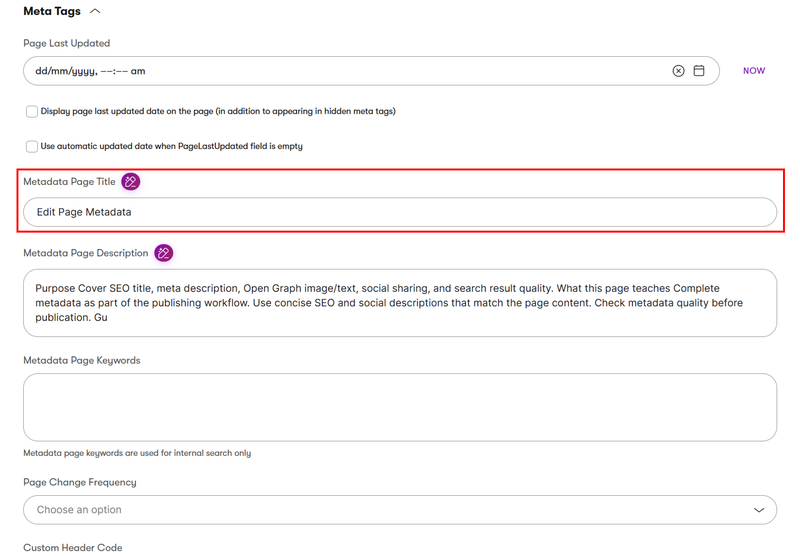 Use Metadata Page Title to provide a clear browser and search title for the page.
Metadata Page Description
The metadata page description supplies the search result description. Write one or two clear sentences that explain what the visitor will find on the page.
- Describe the real page content.
- Use plain language.
- Do not repeat the title word for word.
- Do not include private draft notes or internal instructions.
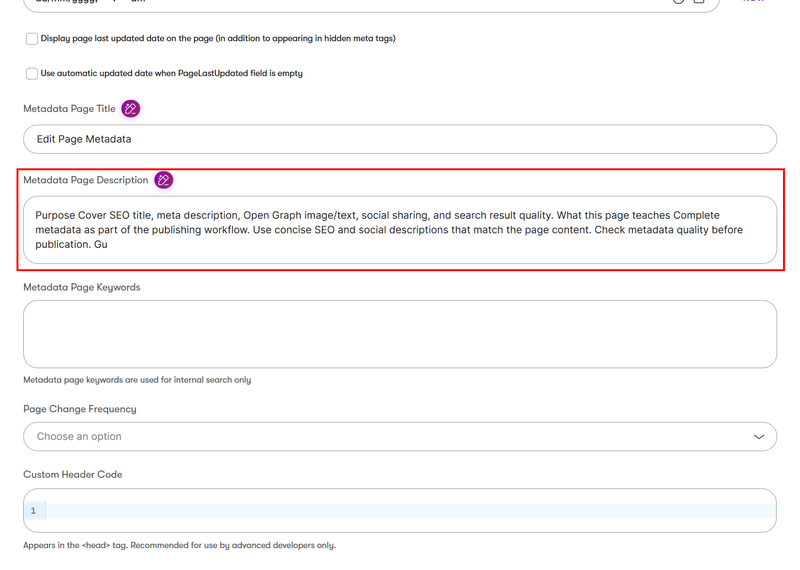 Use Metadata Page Description to write a concise summary that helps people decide whether the page is relevant.
Metadata Page Keywords
The metadata page keywords field is optional legacy metadata. Modern search engines do not rely on it the way older systems did. Use it only if the project has a specific internal convention.
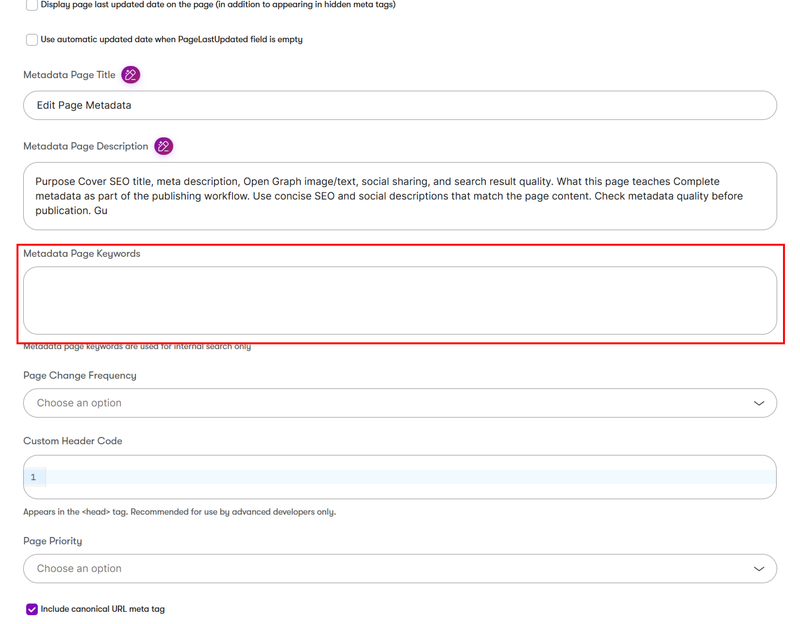
Pro Tip: Metadata should describe the real page that visitors will see. Do not write search or social descriptions that promise content the page does not contain.
Review Page Date Fields
Date fields help visitors and templates understand when a page was last reviewed or updated. Use dates carefully because they can imply that the content is current, reviewed, or maintained.
Page Last Updated
Use Page Last Updated for the real content review or update date. This may not be today's date if the page was reviewed earlier or the update relates to a planned content cycle.
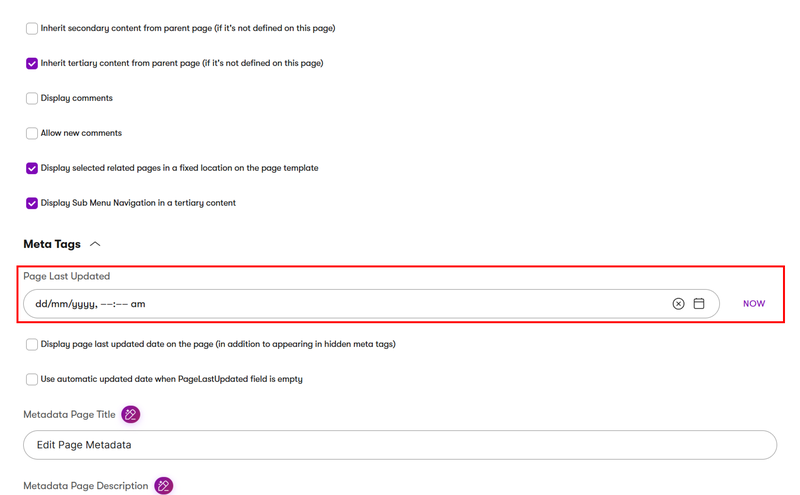
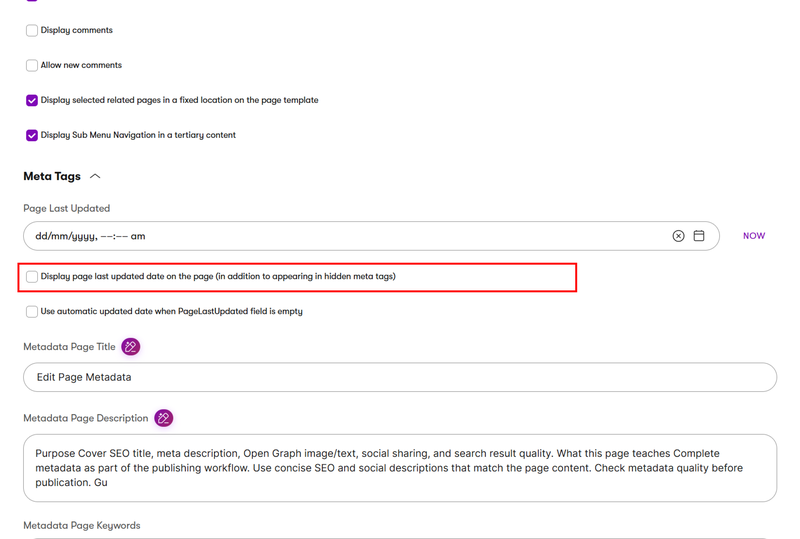
Display Page Last Updated Date
Use Display Page Last Updated Date when the template or content policy expects visitors to see the update date. Leave it off when displaying the date would confuse visitors or imply a review process that has not occurred.
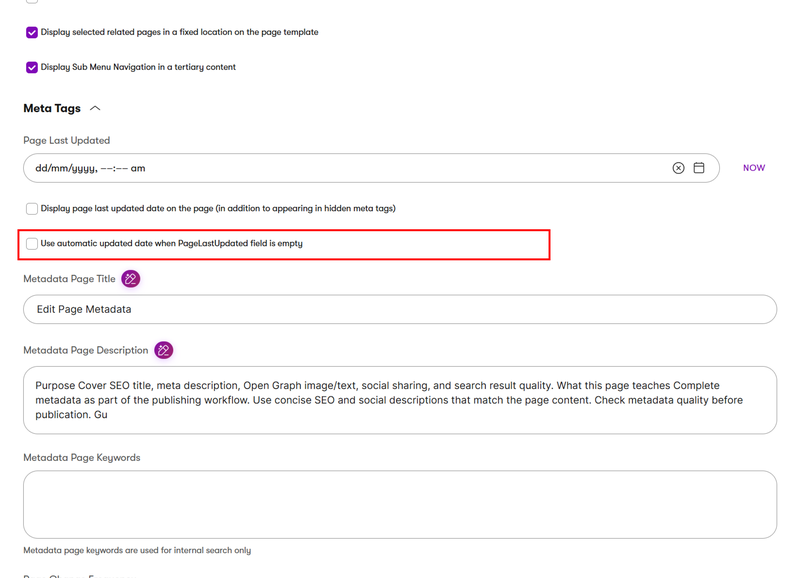
Use Automatic Updated Date
The automatic updated date option allows the system to fall back to an automatic modified date when no manual date is supplied. Use this only when an automatic date is acceptable for the page type and content policy.
Review Indexing And Canonical Settings
Indexing and canonical settings affect how search engines understand and list the page. Do not change these settings casually. If you are unsure, ask a site administrator or SEO lead.
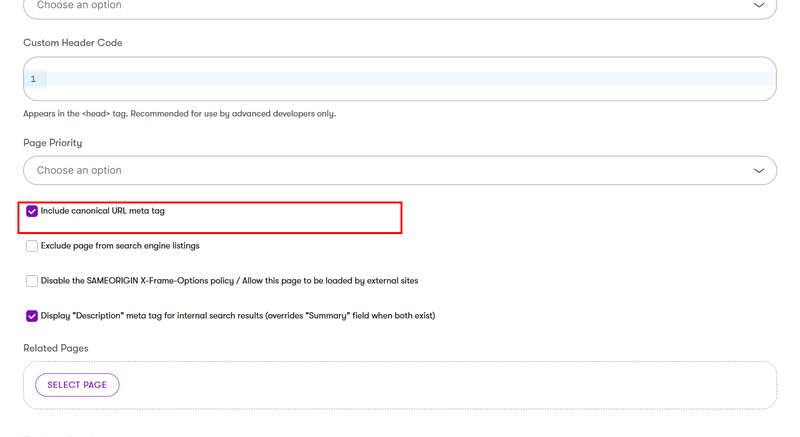
Include Canonical URL Meta Tag
A canonical URL tells search engines which URL should be treated as the preferred version of the page. This is usually helpful and should normally remain enabled unless there is a specific SEO reason to change it.
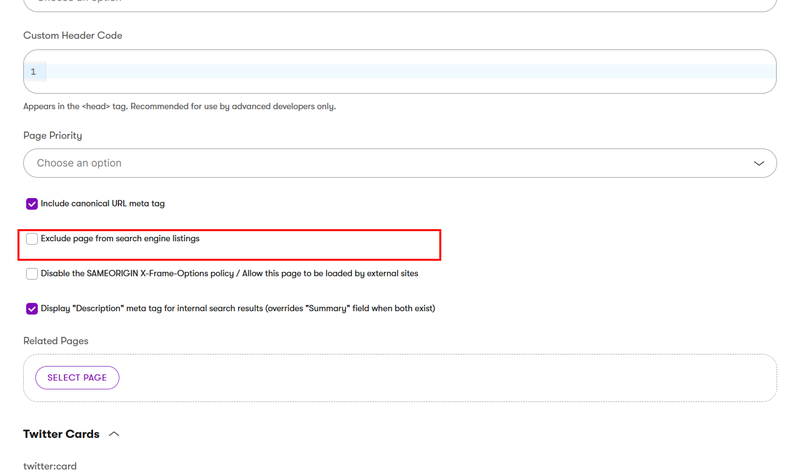
Exclude Page From Search Engine Listings
Use this option when a page should not be listed by search engines. This may be appropriate for temporary pages, duplicate content, private campaign pages, low-value utility pages, or pages that are not ready to be found through search.
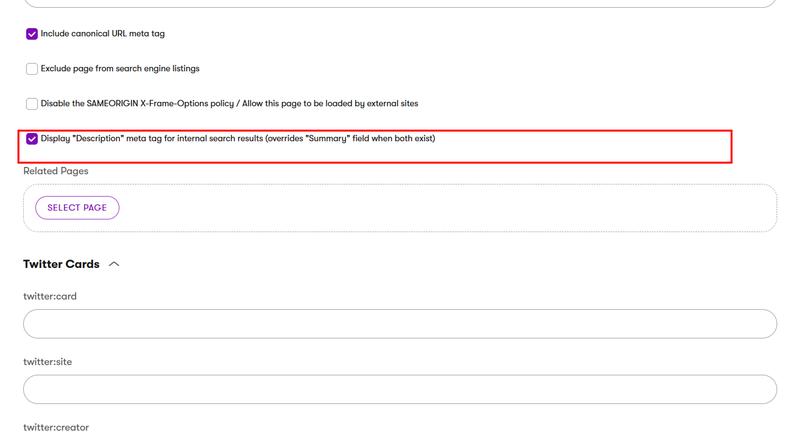
Display Description Meta Tag
Use this option to output the metadata description as a meta description tag. Keep it enabled when a useful metadata description has been written.
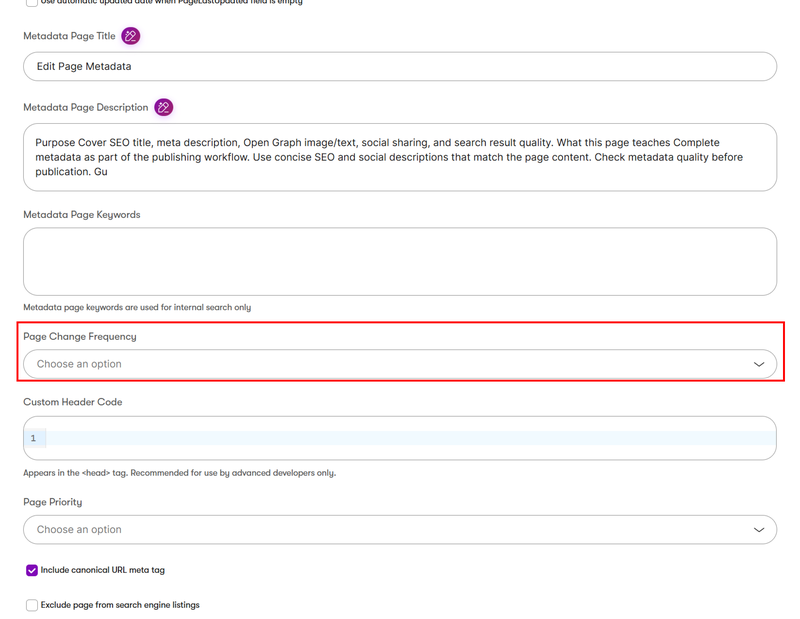
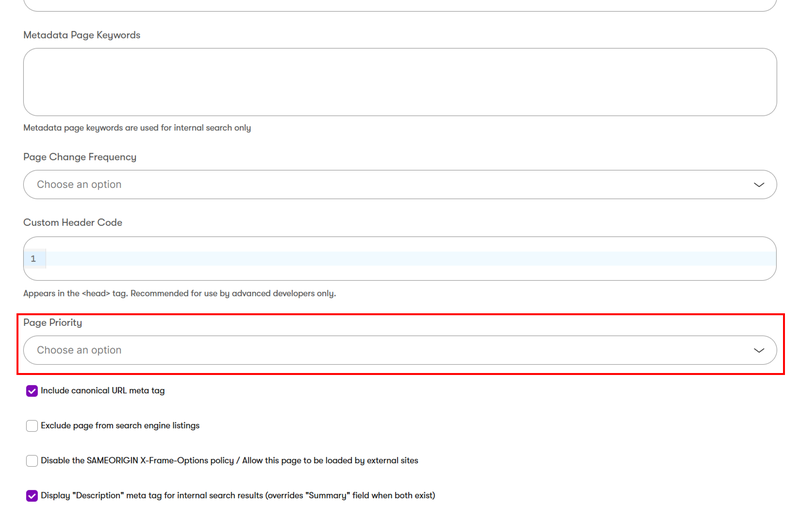
Page Change Frequency And Page Priority
Change frequency and priority are sitemap-style metadata fields. Use realistic values. Do not mark every page as high priority or frequently changed unless that is genuinely true.
Complete Social Sharing Metadata
Social sharing metadata controls how the page may appear when someone shares a link in social platforms, messaging apps, or collaboration tools. The exact preview depends on the receiving platform, but strong metadata gives the page a better chance of displaying clearly.
Twitter/X Fields
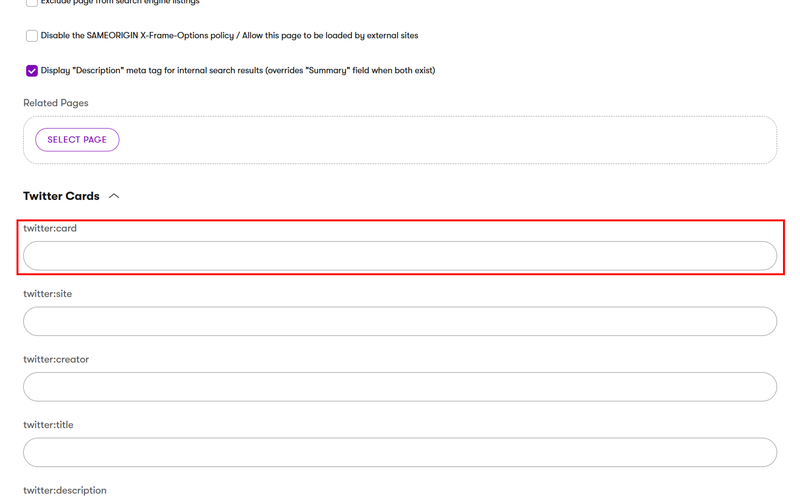
Twitter/X fields control the title, description, card type, site handle, creator handle, and image used for Twitter/X style link previews.
| Field | Use it for | Guidance |
|---|---|---|
| Twitter Card | The preview card type. | Choose the card format that matches the content and available image. |
| Twitter Site | The site or brand account handle. | Use the approved brand handle if the project uses one. |
| Twitter Creator | The author or content owner handle. | Leave blank if the project does not use author-level social metadata. |
| Twitter Title | The social preview title. | Use a clear title that can stand alone outside the website. |
| Twitter Description | The social preview summary. | Keep it short, accurate, and different enough from the title to add value. |
| Twitter Image | The preview image. | Use a relevant image that crops well in social previews. |
Open Graph Fields
Open Graph fields are used by platforms such as Facebook, LinkedIn, Teams, and other link preview tools. These fields should describe the same page as the core metadata, but they can be written for people seeing the link out of context.
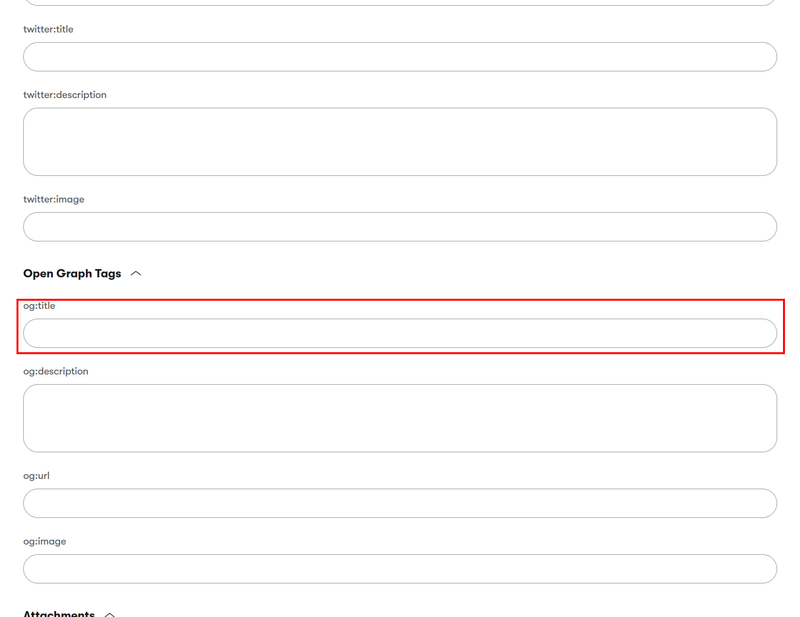
Pro Tip: When a page is important enough for social sharing, check both the title and image. A useful description cannot compensate for a confusing image or a title that is too vague.
Review Related Pages And Attachments
Some page templates can display related pages or attachments. These fields should support the page content, not replace it.
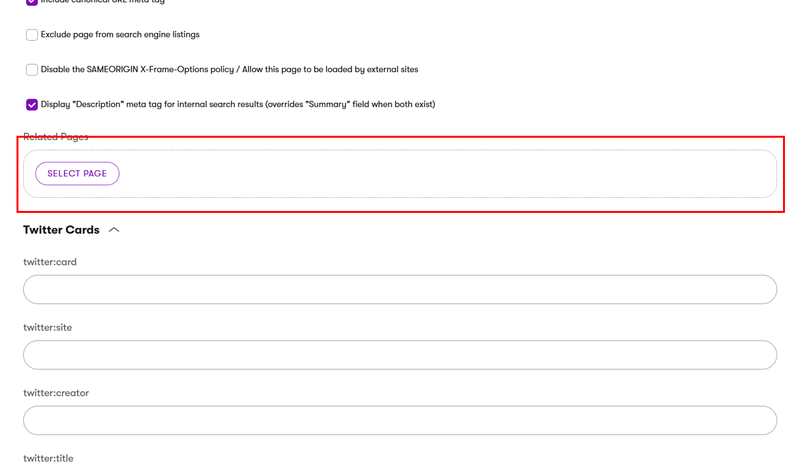
Related Pages
Use Related Pages when the page should point visitors to connected pages. Select only pages that are genuinely useful next steps.
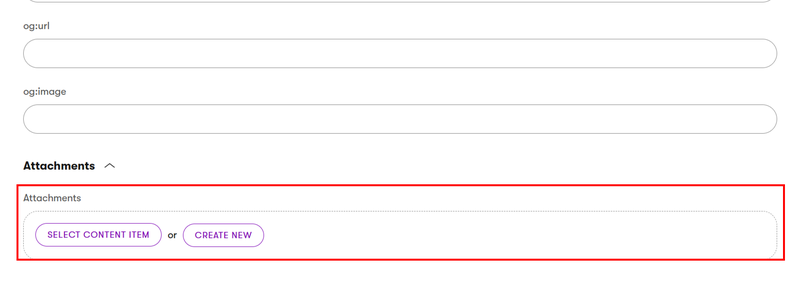
Attachments
Use Attachments for supporting files where the page template supports them. Important information should still be available in the page content where possible. Attachments should support the page, not become the only place key information exists.
Leave Advanced Fields Alone Unless Confirmed
Some metadata fields can affect security, scripts, embeds, or technical page behaviour. Authors should leave these fields unchanged unless a developer or site administrator provides exact instructions.
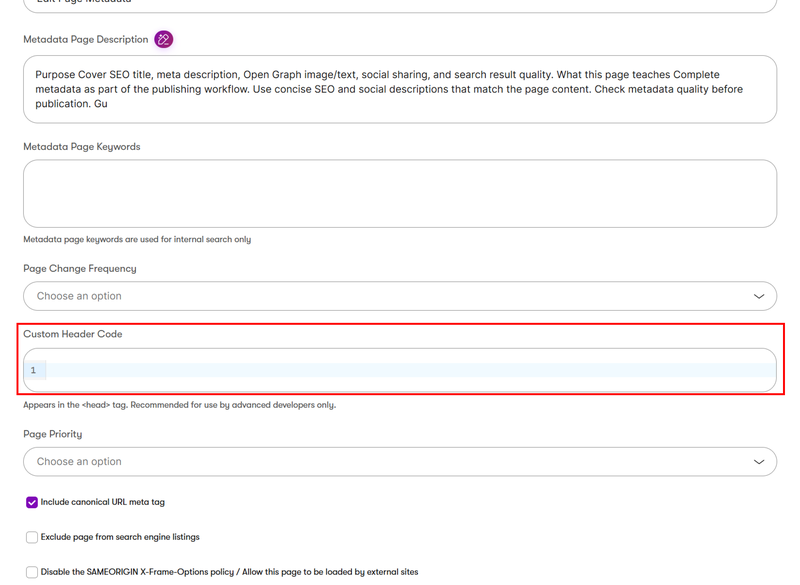
Custom Header Code
Custom Header Code can add page-specific code to the page header. This is an advanced field. Do not paste tracking scripts, styles, embeds, verification snippets, or other code unless a developer has supplied the exact approved code.
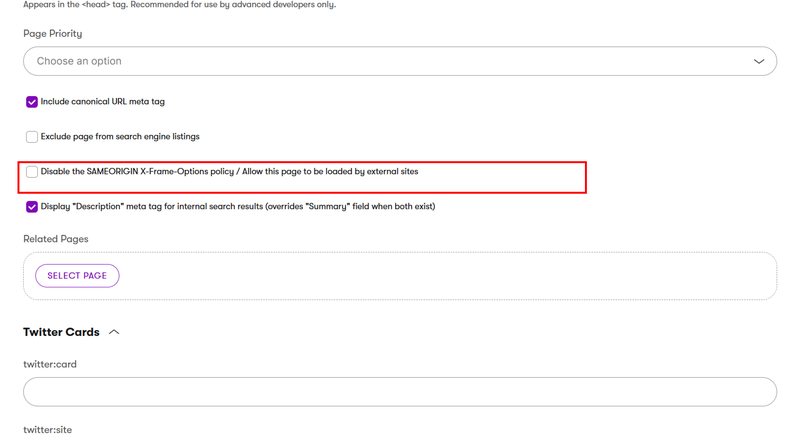
Disable X-Frame-Options Header
This is a security-related option. Do not change it unless a developer confirms the page must be embedded somewhere else and the security impact has been reviewed.
Quality Checklist
- The metadata page title is clear, specific, and aligned with the visible page title.
- The metadata description accurately describes the page.
- No placeholder, draft-only, private, or internal text appears in metadata.
- Search indexing settings match the intended visibility of the page.
- Canonical URL settings have not been changed without a reason.
- Social titles and descriptions make sense when seen outside the website.
- Social images are relevant and suitable for cropping.
- Related pages are genuinely useful next steps.
- Attachments support the page and do not replace essential page content.
- Advanced fields were left unchanged unless exact instructions were provided.
- The draft or working version was saved and previewed before publication.
Login Panel
Training Guidance
Cover SEO title, meta description, Open Graph image/text, social sharing, and search result quality.