
0

Schedule or Unpublish Content
Purpose
This page explains how to schedule or unpublish content in Xperience by Kentico. Use this workflow when a page or reusable content item should stop being visible at a known time, or when content should be removed from the public site without deleting its editing history.
Unpublishing removes the published version from visitor-facing channels, but keeps the item in Kentico so authors can review it, update it, republish it, or check its history later.
What this page teaches
- Use scheduling when timing matters.
- Use unpublish deliberately.
- Avoid deleting content that might still be referenced.
Before You Begin
- Confirm the exact page or content item you are changing.
- Check whether the item is used by other pages, templates, emails, or reusable content relationships.
- Confirm whether the content should be unpublished immediately or at a future date and time.
- Confirm the time zone and date format before scheduling.
- Preview or review the item before making a publishing change.
Pro Tip: If content may be needed again, unpublish it instead of deleting it. Unpublishing keeps the item available for review, reuse, and version history. Deleting or moving content to the recycle bin is harder to reverse and can break references if other content depends on it.
When to schedule content
Schedule content when a publishing change needs to happen at a specific time. Common examples include campaign pages, temporary notices, event content, seasonal content, and reusable content that should be removed after a deadline.
Scheduling is useful when the change is approved now but should not happen immediately. It reduces manual follow-up work and helps avoid leaving time-sensitive content visible after it is no longer accurate.
When to unpublish content
Unpublish content when it should no longer be visible to visitors, but should remain available in Kentico for authors, reviewers, or administrators. This is usually safer than deleting content because the item can still be checked, updated, or republished later.
Unpublishing is also useful when content has expired, needs legal or stakeholder review, contains outdated information, or should be temporarily hidden while updates are prepared.
Schedule an unpublish date
- Open the page or content item in the Kentico administration interface.
- Check that you are editing the correct item.
- Open the publishing or item action menu.
- Choose the unpublish option.
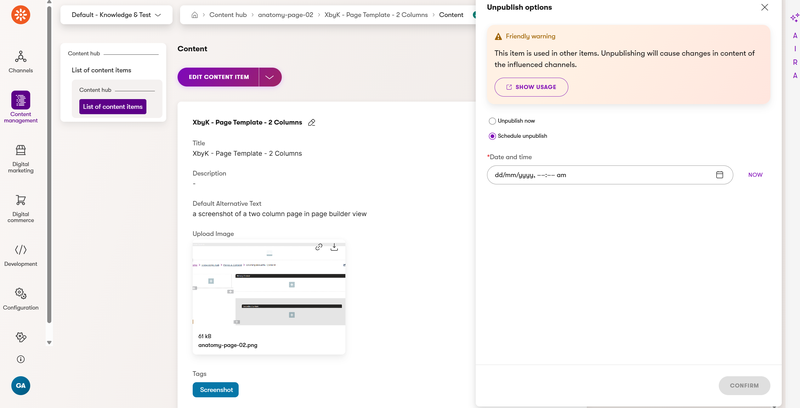
- When the Unpublish options panel opens, choose Schedule unpublish.
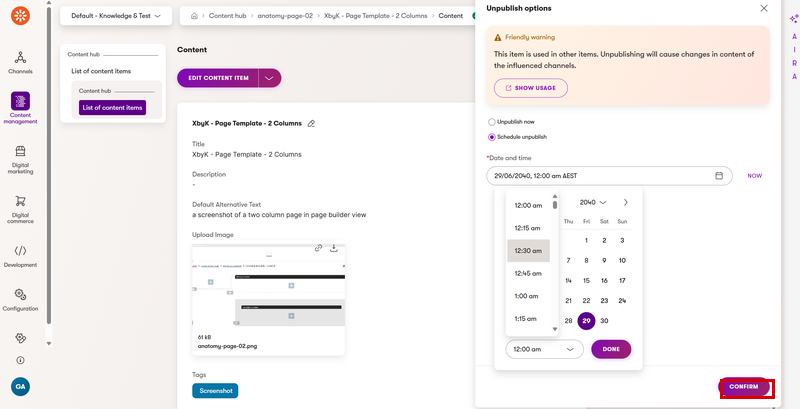
- Enter the date and time when the item should be unpublished.
- Check the friendly warning if Kentico reports that the item is used in other items.
- Select Show usage if you need to review where the item is used before continuing.
- Click Confirm only when the date, time, and impact are correct.
Choose where visitors go after unpublish
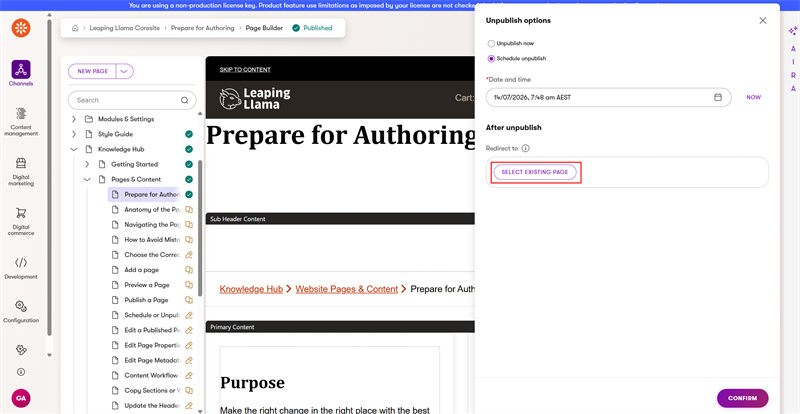
When you unpublish a website page, think about what should happen to visitors who already have the old URL. They may arrive from search results, bookmarks, email campaigns, social posts, QR codes, or links from other websites. If the page simply disappears, visitors may hit an error page or lose the path to the information they expected.
Use the After unpublish area to choose a sensible redirect destination. The destination should be the closest available replacement, such as a parent page, current campaign page, updated article, related service page, or main section landing page.
Do not choose a redirect just because it is convenient. The redirect should match the visitor's intent. If there is no good replacement, ask for guidance before confirming the unpublish action.
Verify the scheduled unpublish
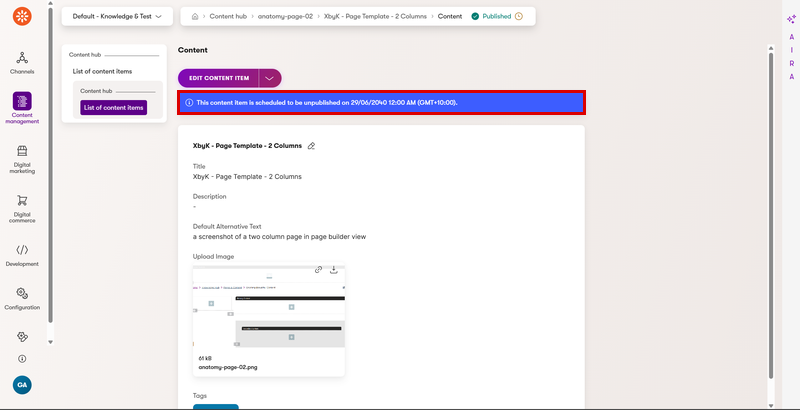
After scheduling an unpublish, check for the confirmation indicator on the item. Kentico shows a message confirming that the item is scheduled to be unpublished at the selected date and time.
If the message does not appear, or the date and time are not correct, do not assume the schedule was saved correctly. Reopen the action menu and check the item again.
Cancel a scheduled unpublish
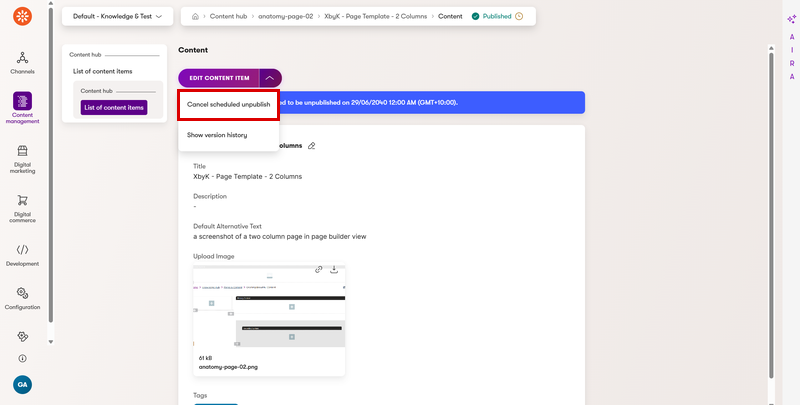
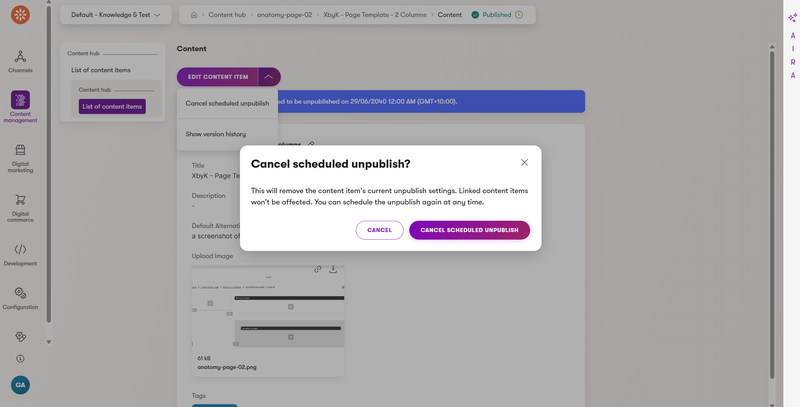
Cancel the scheduled unpublish when the item should remain published or when the scheduled date was entered incorrectly. Cancelling the schedule does not delete the item and does not remove the current published content.
- Open the published item that has a scheduled unpublish indicator.
- Open the item action menu.
- Select Cancel scheduled unpublish.
- Read the confirmation dialog.
- Confirm the cancellation only if the item should remain published.
- Check that the scheduled unpublish indicator is no longer shown.
Check version history
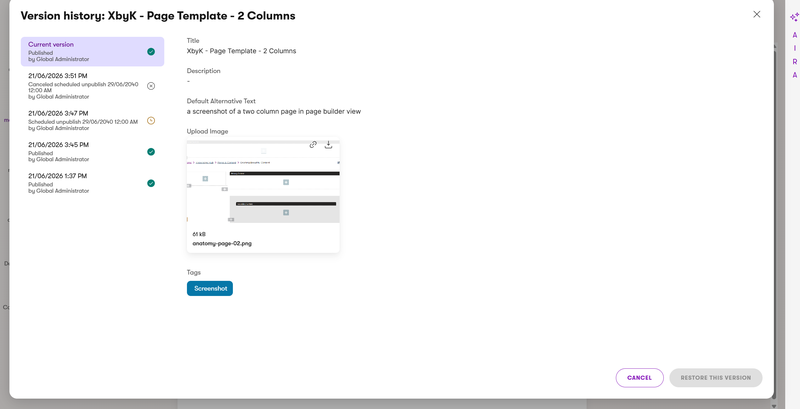
Use version history when you need to confirm what happened to an item. Kentico records actions such as publishing, scheduling an unpublish, and cancelling a scheduled unpublish.
This is useful when several authors work on the same content, when a stakeholder asks why content changed, or when you need to confirm whether a scheduled action was cancelled.
Quality checklist
- The correct page or content item is selected.
- The item usage has been checked before unpublishing shared content.
- The date, time, and time zone are correct.
- The scheduled unpublish confirmation banner appears after saving.
- Stakeholders know when the content will stop being visible.
- The item was unpublished or scheduled instead of deleted when future review or reuse may be needed.
- Version history has been checked if the publishing state is unclear.
Related Articles
Delete or Archive Pages Safely (guide not yet available; ask your site administrator)
Login Panel
Training Guidance
This training note belongs to the Pages & Content workflow. It should help authors make the right change in the right place, then verify the result before publishing.
Explain scheduled publish, expiry, unpublish, and when to archive rather than delete.