
0

Flipbook Widget
Purpose
This page explains how to use the Flipbook widget in Page Builder. A Flipbook widget displays a document, commonly a PDF, in an interactive reader-style format on a page.
Use a flipbook when readers need to browse a designed document such as a brochure, guide, report, catalogue, or magazine-style PDF. The widget settings control the selected document, cover image, maximum width, title, summary, orientation, and which summary fields appear.
What this page Teaches
- What the Flipbook widget is for and when authors should use it.
- How to choose the file type and select the flipbook file from the Content Hub.
- How poster or cover images help readers understand what the document is before opening it.
- How max width, title, summary, and orientation affect the page display.
- How summary view display options control which fields appear before the reader opens the flipbook.
- How to preview the flipbook on desktop and mobile before requesting publication.
Pro Tip: A flipbook should not be the only way to access essential information. Make sure the document title, summary, and view button are clear, and provide a sensible fallback experience for users who prefer to open or download the file.
Before you Begin
Confirm that the document is ready to display as a flipbook. A flipbook is best for polished, page-based documents where the visual page order matters. If the information is mostly text instructions, consider normal page content instead.
Before configuring the widget, confirm:
- You are editing the correct page in Page Builder.
- The document file is approved and stored in the Content Hub.
- The file type is known, such as PDF.
- The document title and summary are ready for readers.
- A poster or cover image is available if the page design needs a visual summary.
- The document has been checked for file size, readability, accessibility, and current version.
- You know whether the flipbook needs a maximum width, orientation, or specific display options.
Basic Workflow
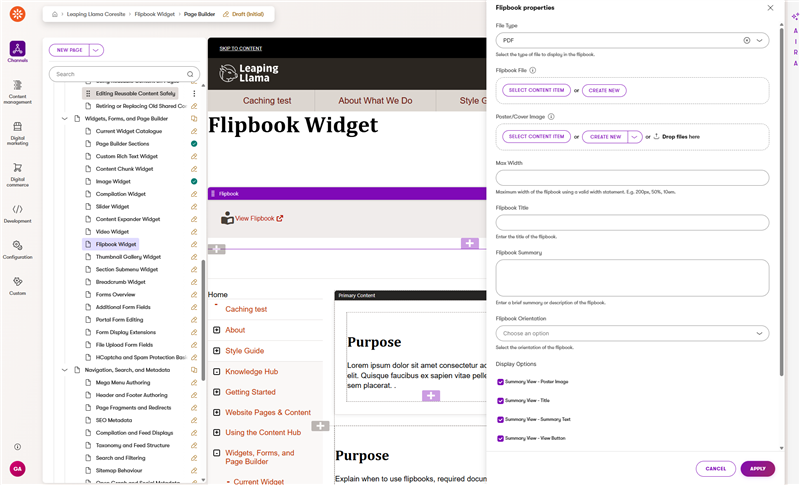
Step 1: Open the Flipbook Widget
- Open the page in Page Builder.
- Select the Flipbook widget in the editable area where it appears.
- Open Flipbook properties.
- Confirm you are editing the intended widget before changing file or display settings.
Step 2: Choose the File Type
- Set File Type to the type of file that will display in the flipbook.
- Use PDF when the flipbook is based on a PDF document.
- Do not select a file type that does not match the selected file.
Step 3: Select the Flipbook File
- Use Flipbook File to select the document from the Content Hub.
- Select an existing document item when the correct file already exists.
- Create a new document item only after searching to confirm the document is not already in the Content Hub.
- Check the document name, file version, status, and location before applying it to the widget.
Step 4: Select the Poster or Cover Image
- Use Poster/Cover Image when the flipbook summary should display a visual cover.
- Select an approved image from the Content Hub, or create a new image asset if the cover image does not already exist.
- Use a cover image that accurately represents the document.
- Check the image description or alternative text where the project requires it.
Step 5: Set Width, Title, Summary, and Orientation
- Use Max Width when the flipbook should not use the full available page width. Enter a valid width value, such as
200px,50%, or10em. - Enter a clear Flipbook Title.
- Enter a short Flipbook Summary that tells readers what the document contains.
- Select the Flipbook Orientation if the document layout requires a specific orientation.
Pro Tip: Use the title and summary to explain the document before readers open it. Do not rely on the PDF filename to communicate the purpose of the flipbook.
Step 6: Choose Summary View Display Options
- Use Summary View - Poster Image when the cover image should appear in the page summary.
- Use Summary View - Title when the flipbook title should appear before the reader opens the document.
- Use Summary View - Summary Text when the description should appear in the summary.
- Use Summary View - View Button when readers need a clear button to open the flipbook.
- Turn off summary fields only when the surrounding page content already provides the same information clearly.
Step 7: Apply, Save, and Preview
- Select Apply in the Flipbook properties panel.
- Save the page draft or working version.
- Preview the page and confirm the flipbook summary appears as expected.
- Open the flipbook and check that the correct document loads.
- Check the cover image, title, summary, view button, orientation, and width.
- Check desktop and mobile layout.
- Do not publish, submit, schedule, unpublish, or archive unless that action has been specifically requested.
Quality Checklist
- The Flipbook widget is in the correct Page Builder editable area.
- The selected file type matches the selected document.
- The flipbook file is the correct approved document and current version.
- The document is stored in the correct Content Hub location.
- The poster or cover image is clear, relevant, and approved.
- The title and summary explain the document clearly.
- The maximum width and orientation work with the page layout.
- Summary view options show the fields readers need before opening the document.
- The flipbook opens and displays the expected document in preview.
- The page works on desktop and mobile.
- No publish, unpublish, archive, or schedule action was taken unless specifically requested.
Related Pages
Document and File Asset Naming (guide not yet available; ask your site administrator)
Login Panel
Training Guidelines
When training authors on this topic, start by showing the difference between the document file and the poster or cover image. Learners should understand that the document is the flipbook content, while the cover image helps readers recognise it before opening.
Demonstrate the settings in order: file type, flipbook file, cover image, max width, title, summary, orientation, and summary view display options.
Ask learners to inspect a configured flipbook and identify whether the document is current, whether the title and summary are useful, and whether the visible view button makes the next action clear.
End the session by previewing the flipbook on desktop and mobile, opening the document, and checking that readers can still understand what the document is before they open it.