
0

Using Reusable Content on Pages
Purpose
This page explains how to use reusable Content Hub items on website pages in Xperience by Kentico. Reusable content is not copied into the page. The page, widget, or structured field points to the selected Content Hub item.
This matters because one reusable item can be maintained centrally and displayed in several places. It also means authors must choose carefully: selecting the wrong item can show the wrong title, image, summary, file, or link on the page.
What this page Teaches
- How reusable Content Hub items are used by pages, widgets, and structured fields.
- How to check the reusable item before selecting it on a page.
- How to select the correct item from a content selector or widget setting.
- How to save and preview the page after selecting reusable content.
- How to avoid selecting duplicate, outdated, draft, or incomplete content.
Pro Tip: Treat reusable content selection as a publishing decision, not just a layout task. The selected item controls what visitors see in that part of the page.
Before you Begin
Start by confirming the item you want to use already exists in the Content Hub. If it does not exist, create and check the reusable content item before selecting it on a page.
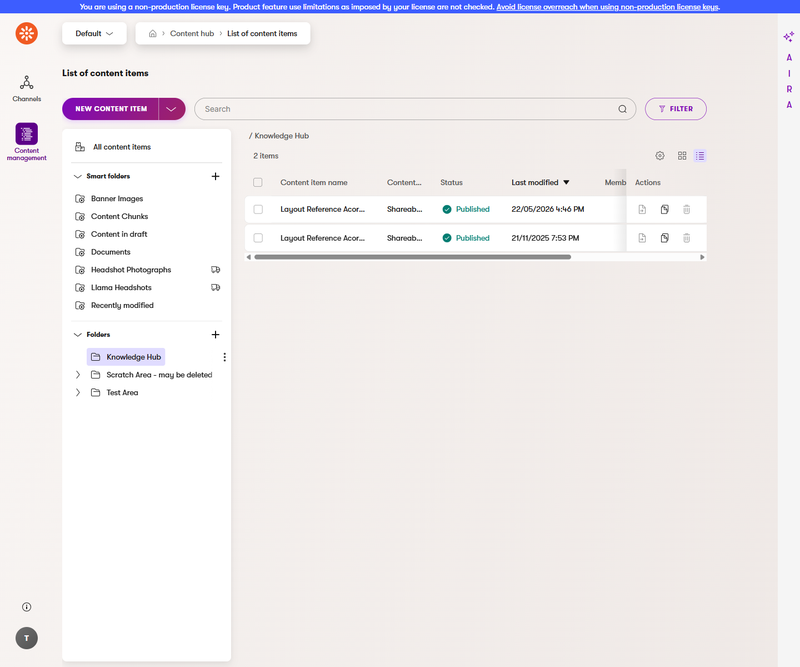
Before selecting reusable content on a page, confirm:
- You are editing the correct website page in the correct channel.
- You know whether the reusable content belongs in a structured page field, a Page Builder widget, or another component setting.
- The reusable item has the correct title, summary, image, file, link, tags, and status.
- The item is not a duplicate or outdated version of another Content Hub item.
- You understand whether the page should stay as a draft, working version, or published page after the change.
Where Reusable Content May Be Selected
| Selection area | Use it when | What to check |
|---|---|---|
| Content tab field | The page type has a structured field that selects a Content Hub item. | Check that the selected item supports the page purpose and metadata. |
| Page Builder widget | A visual component displays a selected item, list, image, file, callout, or resource. | Check the widget settings and the frontend preview after saving. |
| Reusable listing or feed | The page displays items based on tags, taxonomy, folder, type, or another configured rule. | Check that the reusable item has the tags and status required to appear in the list. |
| Rich text link or reference | The author is linking to an uploaded document, page, or asset from body copy. | Use specific link text and confirm the asset or page opens correctly. |
Basic Workflow
Step 1: Open the Correct Page
- Open the website channel in Xperience by Kentico.
- Find the page in the content tree or use search if the tree is large.
- Confirm the page title, URL path, parent page, and status.
- Choose the tab where the reusable content is selected, usually Content for structured fields or Page Builder for widgets.
Step 2: Check the Reusable Item First
- Open the Content Hub in a separate browser tab if needed.
- Search for the item by title, short title, old name, filename, acronym, or likely synonym.
- Open the item and check the fields that will display on the page.
- Confirm the item status is suitable for the page workflow.
- If the item may already be used elsewhere, check its usage before changing it.
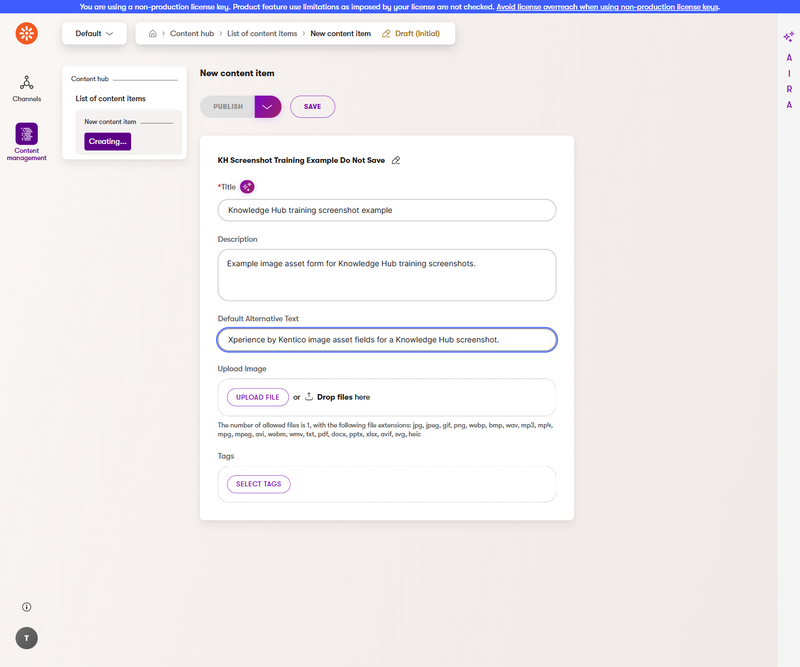
Step 3: Select the Item on the Page
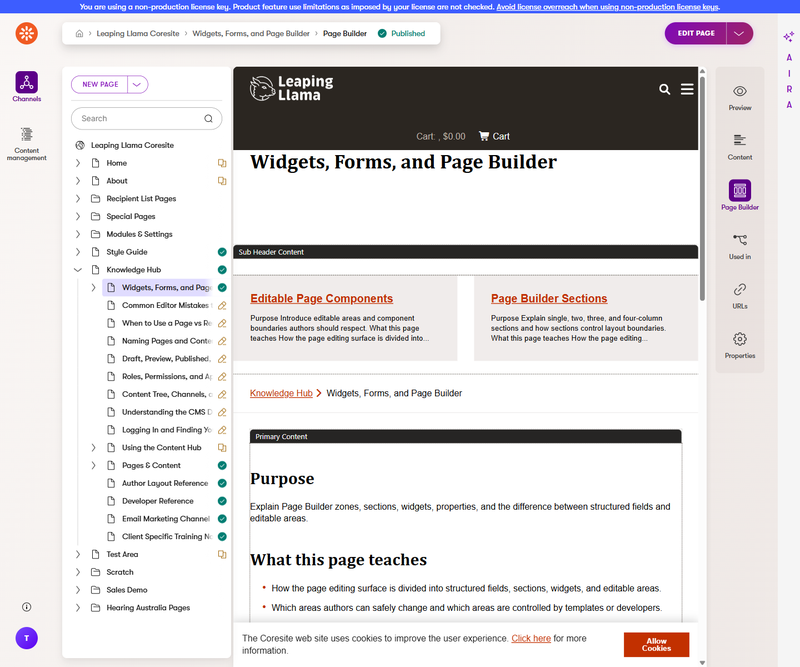
- Return to the page editing screen.
- Open the field, widget, or component setting that selects reusable content.
- Use the selector search or filters to find the correct item.
- Check the item name, title, type, and summary before selecting it.
- Select the item and confirm it appears in the field or widget setting.
Pro Tip: Do not rely on the first matching search result. Reusable content names can be similar, especially when old versions, training items, campaign items, or duplicates exist.
Step 4: Save the Page or Widget
- Select Save for the page, widget, or field you changed.
- Confirm the page status shown by Xperience by Kentico.
- Do not publish, submit, schedule, unpublish, or archive unless that action has been specifically requested.
- Refresh or reopen the page if you need to confirm the selected item persisted.
Step 5: Preview the Page
- Open the page preview
- Find the section where the reusable content should appear.
- Check that the title, summary, image, file, link, button, and layout display as expected.
- Check the page on desktop and mobile widths if the item appears inside columns, cards, or narrow areas.
- If the item does not display, recheck the item status, widget settings, tags, filters, and selected content field.
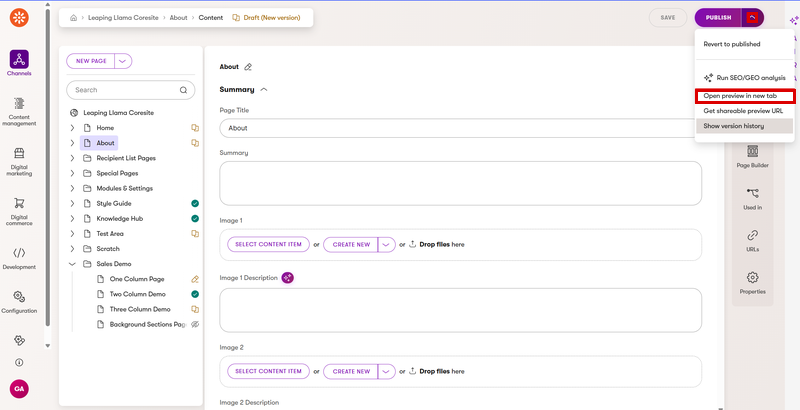
Step 6: Record Any Follow-up
- If the item needs editing, record whether the change belongs on the reusable item or on the page.
- If the page is waiting for review, note which reusable item was selected and where it appears.
- If the item is missing required information, return to the Content Hub item and complete it before publishing the page.
Quality Checklist
- The page, channel, and editing tab are correct.
- The selected Content Hub item is the intended item, not a duplicate or outdated version.
- The item fields that display on the page are complete and accurate.
- The selected item has the right status for the page workflow.
- The item has the tags or taxonomy required for any listing, feed, or filtered display.
- The item image, document, video, link, or file opens correctly where applicable.
- The page was saved and the selected item persisted after refresh or reopen.
- The page was previewed after the reusable item was selected.
- The reusable content works in the selected layout on desktop and mobile widths.
- No publish, unpublish, archive, or schedule action was taken unless specifically requested.
Related Pages
Finding Existing Content Before Creating New Content
Creating Reusable Content Items
Editing Reusable Content Items
Login Panel
Training Guidelines
When training authors on this topic, show the relationship between the page and the Content Hub item. Emphasise that the page usually stores a reference to the reusable item, not a separate copy of the content.
Ask learners to practise selecting a reusable item in a safe training page or widget. They should search for the item, inspect the item details, select it, save, reopen, and preview the page.
End the session by asking learners to explain what would happen if the reusable item changed later. They should understand that shared content can affect multiple page displays, so selection and review are part of quality control.