
0

Finding Existing Content Before Creating New Content
Purpose
Teach authors to search, filter, inspect, and reuse existing content before creating duplicate pages, images, documents, files, videos, or reusable content items.
What this page teaches
- How to search Content Hub before creating a new item.
- How smart folders support common maintenance tasks.
- How list view helps authors audit status, location, usage, and other fields.
- How folders and tags make assets easier to find and reuse long term.
- When it is still appropriate to create a new content item.
Pro Tip: Do not leave content at the top level. The top level shows content from all levels below it, so it quickly becomes noisy and difficult to maintain. File images, documents, videos, and reusable content into useful folders from the start.
Why searching first matters
Duplicate content makes a site harder to maintain. If the same image, PDF, document, or reusable content item is uploaded several times, authors may update one copy while an older copy continues to appear on another page.
Searching first also protects shared content. A reusable content item may already be selected by pages, widgets, feeds, smart folders, or dynamic content areas. Reusing the existing item keeps maintenance in one place. Creating a duplicate should be a deliberate decision, not the default.
Search before creating
Start in Content Hub and search for the main topic, file name, campaign name, product name, or asset subject. Repeat the search with likely synonyms, acronyms, older project names, and short names that another author may have used.
If a likely match appears, open it and check the title, description, image preview, tags, status, location, and usage before deciding whether it can be reused. Do not rely on the item name alone.
Use smart folders for quick tasks
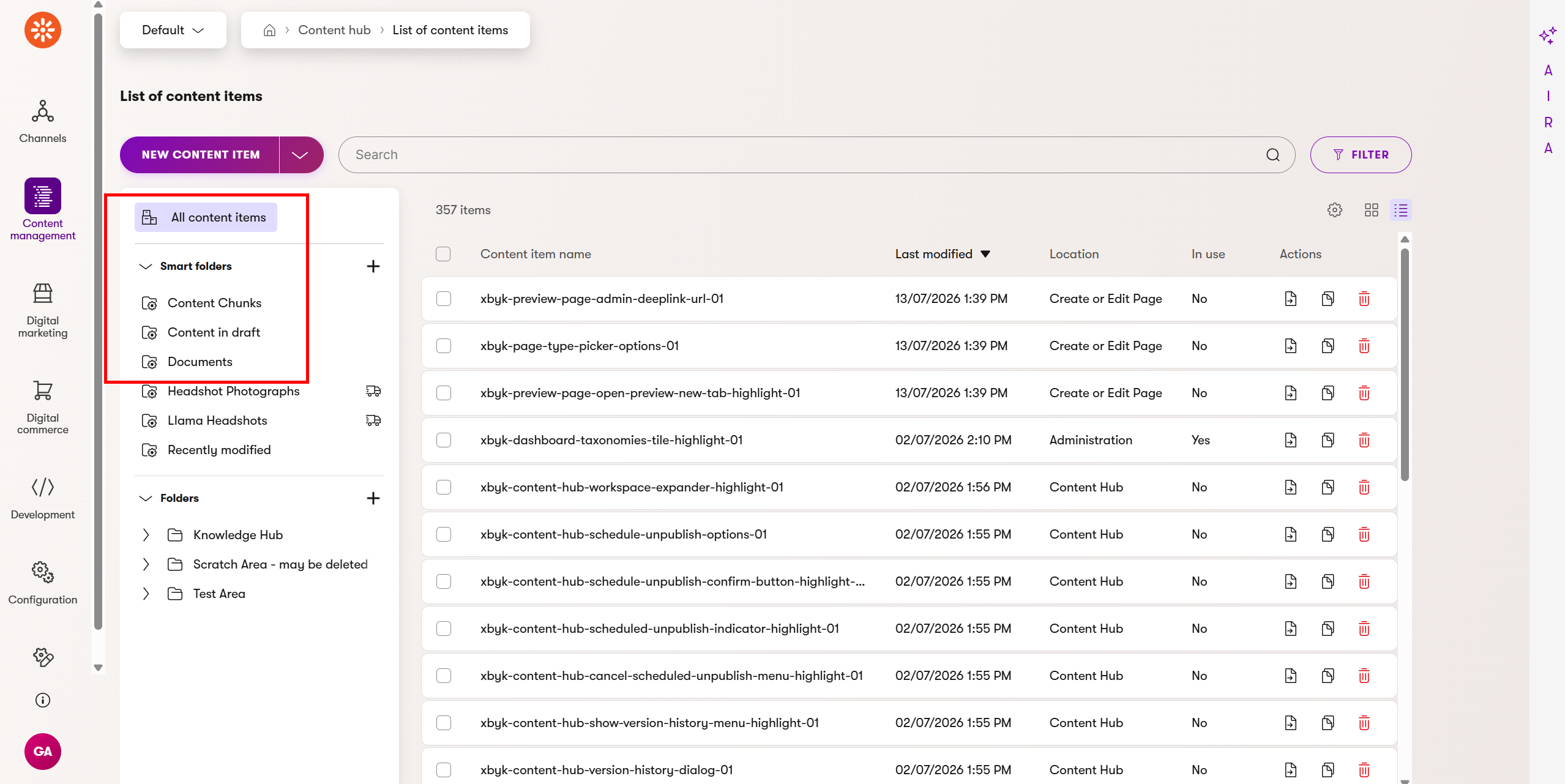
Smart folders are saved, filter-based views. They help authors return to common maintenance tasks without rebuilding the same filters each time.
Use smart folders for tasks such as finding draft content, recently modified items, documents, headshot images, reusable content chunks, or content tagged for a specific purpose. Because smart folders are dynamic, items can move in and out of them when their status, content type, tags, taxonomy, or other metadata changes.
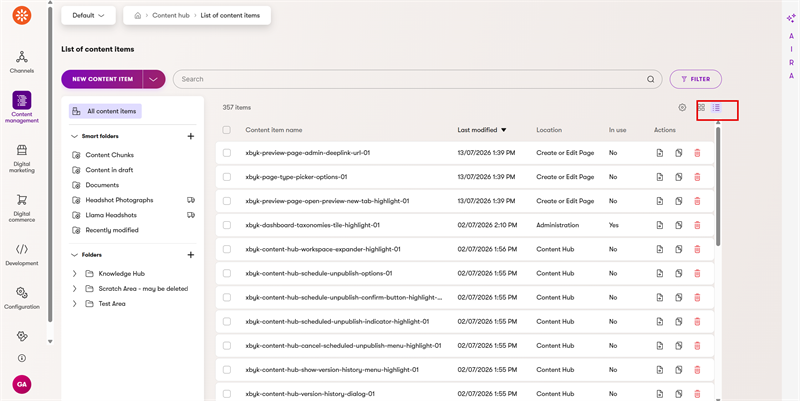
Switch between thumbnail view and list view
Thumbnail view is useful when visual recognition matters, such as choosing an image, logo, screenshot, or document cover. It lets authors compare assets quickly.
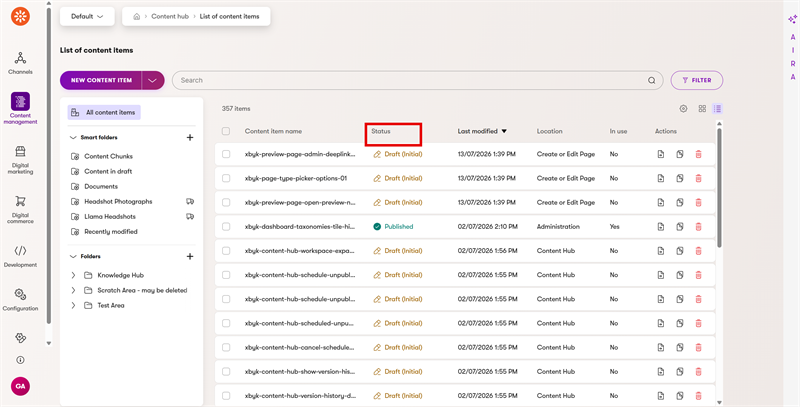
List view is better for maintenance. It shows rows of content with columns such as status, last modified date, location, language, and whether the item is in use. Use list view when reviewing many items, checking what still needs publishing, or cleaning up old content.
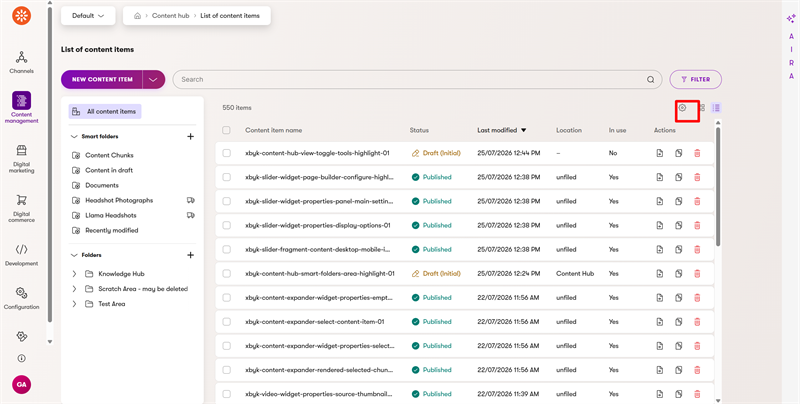
Choose the fields shown in list view
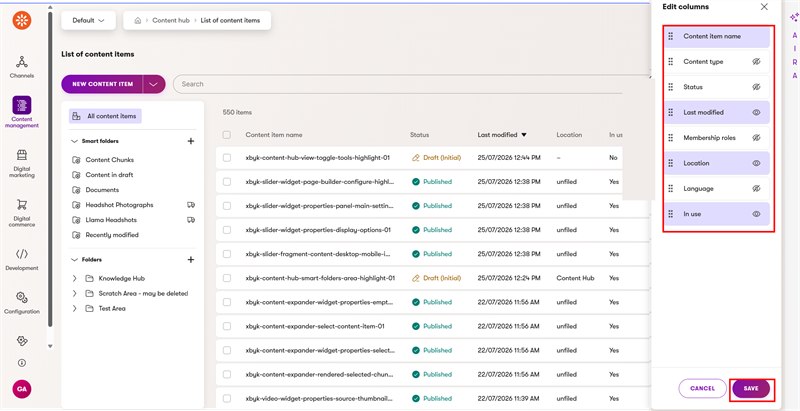
Use the cog in the list view toolbar to open the column selector. The visible fields should match the task. For example, an author checking publishing progress may add Status, while an author reviewing shared assets may add In use or Location.
Changing the list view does not change the content item itself. It changes the working view so the right maintenance information is visible.
Use status for maintenance reviews
The Status column helps authors find items that are still in draft, already published, or waiting for review. This is useful when processing a batch of uploaded images or documents because it shows which items still need finishing before they can be reused confidently.
If an image, document, or file is still in draft, check whether the title, description, default alternative text, tags, folder, and usage are complete before publishing or selecting it for a page.
File content into folders
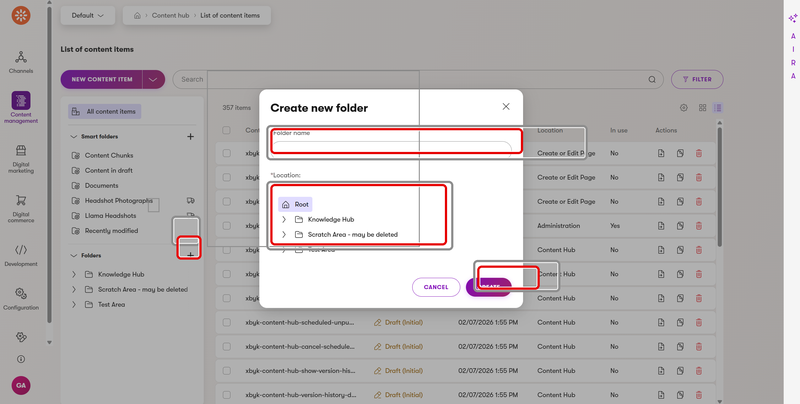
Folders are part of the long-term information architecture for Content Hub. Create folders before large upload or migration tasks so content lands in a sensible structure from the beginning.
Good folder structures are predictable. Use folders for stable groupings such as Knowledge Hub screenshots, campaign documents, product files, headshots, logos, downloads, or reusable content collections. Avoid creating vague folders such as Miscellaneous unless there is a clear maintenance owner and review process.
Use tags to support reuse
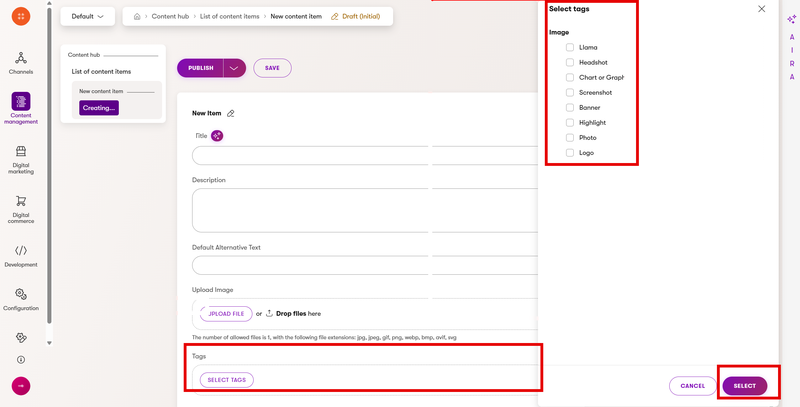
Tags help classify content beyond its folder location. Different content types may have different tag options, so the available tags for an image may differ from the available tags for another reusable content type.
Use tags consistently. Tags can help authors find a specific type of image, group campaign assets, identify screenshots, or distinguish logos, headshots, banners, and photos. On some sites, tags or taxonomy fields may also support smart folders or dynamic content selections, so changing a tag can affect where content appears.
Dynamic folders and content delivery
In Xperience by Kentico, smart folders can be based on filter conditions such as status, tags, or recently modified items. Kentico also supports using smart folders for website-channel dynamic content delivery when that option is enabled for the smart folder.
That means metadata is not just housekeeping. If a smart folder is used by a page, widget, or listing, changing a content item's status, tags, content type, or other filter fields may change whether that item appears in the delivered content. If you are unsure whether a smart folder is only for administration or also used for delivery, check with the site owner or developer before changing the folder rules.
When to create a new item
Create a new item when the existing content has a different purpose, different owner, different audience, different approval pathway, or different lifecycle. Do not duplicate content simply because it is easier than checking whether the existing item can be reused.
If the existing item is almost right, decide whether to update it in place, create a replacement, retire the older item, or create a new item for a genuinely separate purpose.
Basic workflow
- Search for the main topic, file name, page title, or asset subject.
- Try alternate names, acronyms, old campaign terms, and previous file names.
- Use filters, folders, smart folders, and tags to narrow the result set.
- Switch to list view when you need to compare status, location, last modified date, or usage.
- Open likely matches and inspect the fields, asset preview, tags, folder, status, and usage.
- Reuse or update a suitable item where possible.
- Create a new item only when the existing items do not fit the purpose.
- File the new item into the correct folder and apply the correct tags before publishing or reuse.
Quality checklist
- Search was performed before creating the new item.
- Likely duplicates were reviewed, not ignored.
- The author can explain why a new item is needed.
- The item has a clear title, description, folder, and tags.
- Images include suitable alternative text and are published only when ready.
- Documents and files use meaningful file names and are stored in the correct folder.
- Smart folders or dynamic delivery rules have been considered before changing tags or status.
- The item follows the site's naming and metadata rules.