
0

Document and File Asset Naming
Purpose
Learn best practices to name, upload, replace, and test document and file assets in the Xperience by Kentico Content Hub.
Documents and files often live longer than the page where they were first linked. Clear names, accurate descriptions, and careful replacement checks help users download the right file and help authors maintain downloads over time.
What this page Teaches
- How document titles differ from uploaded filenames.
- How to name files so authors and visitors understand what they are downloading.
- How to decide whether a file should be reused, replaced, or created as a new asset.
- How to check where a shared file is used before replacing it.
- How to review link text and surrounding page copy after a document update.
- How to test a download or browser preview after saving.
Before you Begin
Start in Content Hub and confirm you are working in the correct workspace and folder. Search for the document or file before uploading. Try the document title, filename, topic, year, version, campaign name, policy name, form name, and likely synonyms.
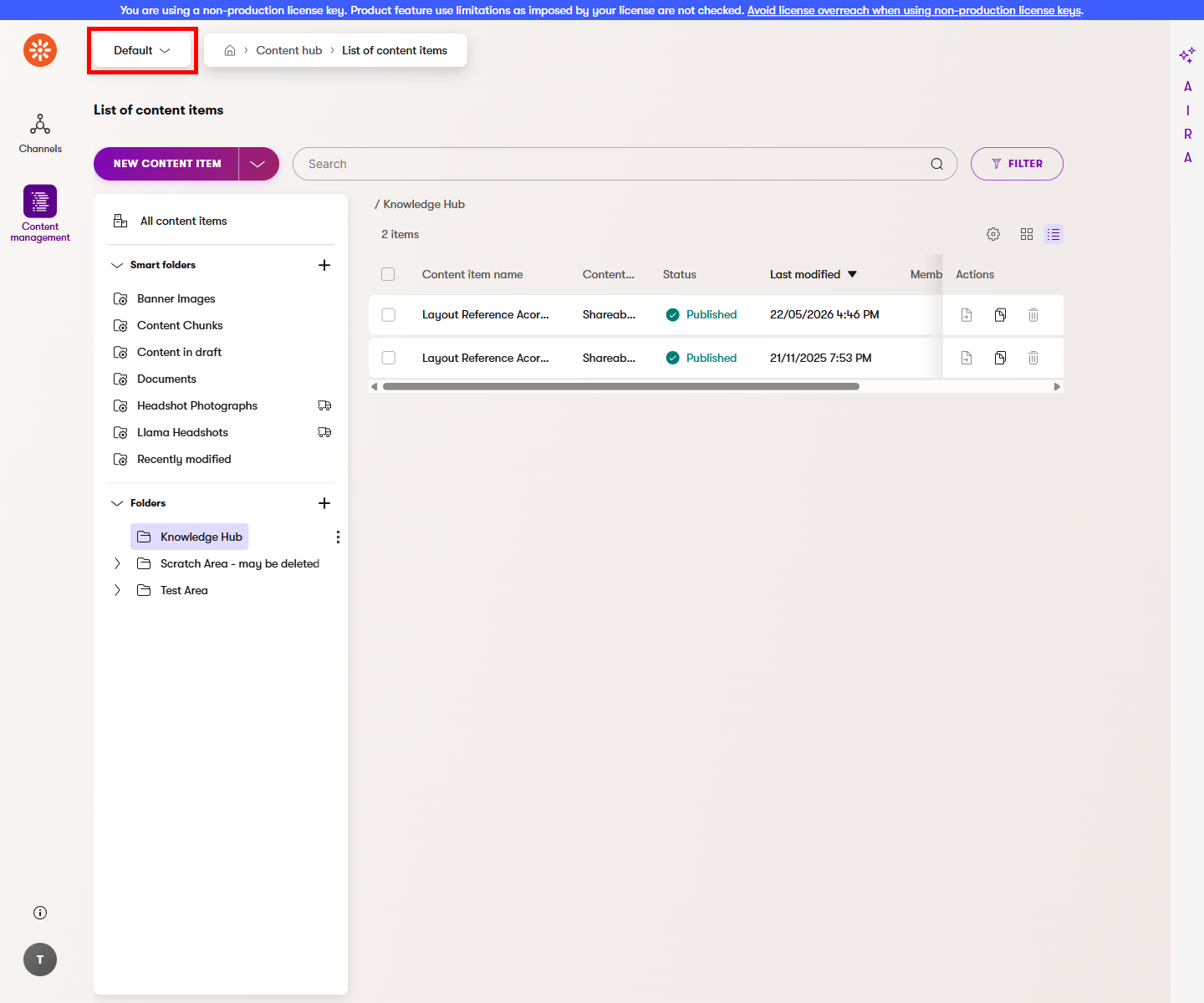
Before creating or replacing a file, confirm:
- the file is approved, current, and safe to make available to visitors;
- the file type is appropriate for the intended use, such as PDF for a public document or another approved format for downloads;
- the title and description make sense without relying on the page where the file is first linked;
- the filename is meaningful and not a temporary export name;
- the file does not contain private, outdated, draft, tracked-change, or internal-only content;
- the existing asset is not already used somewhere that should stay unchanged.
Pro Tip: A good document title is for people. A good filename is for maintenance. Both matter. Visitors may see the title or link text, while authors may search by filename later.
Basic Workflow

Step 1: Search before uploading
- Open Content Hub.
- Select the correct workspace and folder.
- Search by document title, filename, topic, year, version number, business area, campaign, product, form name, and likely alternate wording.
- Use list view when you need to compare status, folder, last modified details, tags, or usage.
- Open likely matches and inspect the title, description, uploaded file, status, tags, folder, and usage.
Step 2: Name the file clearly
Use filenames that describe the document and avoid vague working names. Include a date, year, version, program, or audience only when that information helps authors and visitors choose the right file.
| Avoid | Use instead | Why |
|---|---|---|
final.pdf |
leaping-llama-membership-form-2026.pdf |
Identifies the organisation, document purpose, and year. |
brochure.pdf |
content-hub-author-training-guide.pdf |
Describes the document topic. |
policy-new-v2.pdf |
privacy-policy-v2-2026.pdf |
Makes the policy and version clear. |
download.docx |
supplier-onboarding-checklist.docx |
Explains what the user will download. |
Step 3: Create the document or file asset
- Select the destination folder in Content Hub.
- Create a new content item and choose the project's document or file content type, commonly Document Asset or File Asset.
- Enter a clear content item name.
- Complete the title and description fields in plain language.
- Upload the approved file.
- Add tags or taxonomy values where the project uses them.
- Save the item as draft or working content unless publishing has been explicitly requested.
- Reopen the item and confirm the uploaded file, title, description, folder, tags, and status are correct.

Step 4: Decide whether to reuse, replace, or create new
| Decision | Use when | Check first |
|---|---|---|
| Reuse the existing file | The file is current, approved, and has the same meaning in the new location. | Confirm the title, description, file version, status, and link text are suitable. |
| Replace the existing file | The asset is the same document or file, but the uploaded file needs correction or a newer approved version. | Check every affected use so the replacement does not change unrelated pages unexpectedly. |
| Create a new file asset | The file has a different purpose, audience, owner, language, approval path, expiry date, or lifecycle. | Record why the similar existing file is not suitable. |
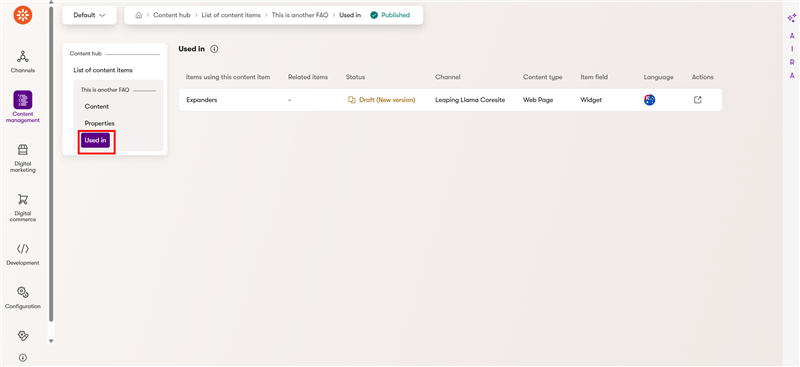
Step 5: Check usage before replacing
- Open the existing document or file asset.
- Review the Used in information where available.
- Identify the pages, widgets, content items, emails, or download lists that may change when the file changes.
- Confirm that all affected uses should receive the replacement file.
- If only one page needs a different file, create a new asset instead of replacing the shared one.
Pro Tip: When a document changes substantially, check the page copy too. A page that says "Download the 2025 fees guide" should not link to a 2026 document without updating the surrounding text.
Step 6: Check link text and test the download
- Open the page, widget, or content item that links to the file.
- Check that the link text describes the file clearly. Avoid generic labels such as Click here or Download when the document title would be clearer.
- Preview the page and open the file link.
- Confirm the file downloads or opens in the browser as expected.
- Confirm the file itself is the right version and does not expose draft notes, tracked changes, private data, or outdated branding.
- Save the page or content item as draft or working content unless publishing has been explicitly requested.
Quality Checklist
- The Content Hub was searched before uploading a new document or file.
- The filename is meaningful and not a temporary export name.
- The document title is understandable without opening the file.
- The description explains what the file is and when authors should use it.
- The uploaded file is the correct approved version.
- The file does not include internal notes, tracked changes, private data, or outdated content.
- Tags or taxonomy values are complete where the project uses them.
- The Used in information was checked before replacing a shared file.
- Link text and surrounding page copy still match the uploaded file.
- The download or browser preview was tested after saving.
- No duplicate, unclear, or placeholder file assets were introduced.
Related Pages
Finding Existing Content Before Creating New Content
Media and File Asset Management
Image Asset Naming and Replacement
Login Panel
Training Guidelines
When training authors on this topic, focus on the difference between a file record, the uploaded filename, the visible link text, and the page copy around the link.
- Demonstrate searching for an existing document before uploading a new one.
- Show examples of vague filenames and better descriptive filenames.
- Open a document or file asset and identify the title, description, upload, tags, folder, status, and usage areas.
- Ask learners to decide whether sample scenarios require reuse, replacement, or a new asset.
- Emphasise that replacement is appropriate only when every affected use should receive the new file.
- Have learners rewrite generic link text into clear document-specific link text.
- End the session by having learners preview a linked file, open the download, and confirm that the page copy still matches the file.