
0

Draft, Preview, Published, and Archived States
Purpose
Define the content lifecycle states authors see while creating, reviewing, publishing, unpublishing, and retiring content.
What this page teaches
- What draft content means.
- How preview differs from the public live site.
- What published content means for visitors.
- When archived content should be used instead of deletion.
Draft, preview, published, and archived states
Xperience by Kentico uses page states to show whether a page is only being worked on in the administration interface, available for review, visible on the live website, or removed from public view. Authors should check the page status before editing, reviewing, publishing, unpublishing, or deleting a page.
The status indicator in the page tree gives a quick visual clue, but the safest check is to open the page and confirm the status shown in the editing interface. This is especially important before publishing changes or removing content from the site.
Page tree status indicators
- New or draft page: an orange pencil indicator shows that the page is being worked on and is not yet published in its current form.
- Published page: a green check indicator shows that the page has a published version available on the website.
- Update saved as draft: an orange draft or new-version indicator shows that the page has saved changes that are not yet published. The live site may still show the last published version.
- Unpublished or not visible: a crossed-out eye indicator shows that the page is not currently visible on the public website.
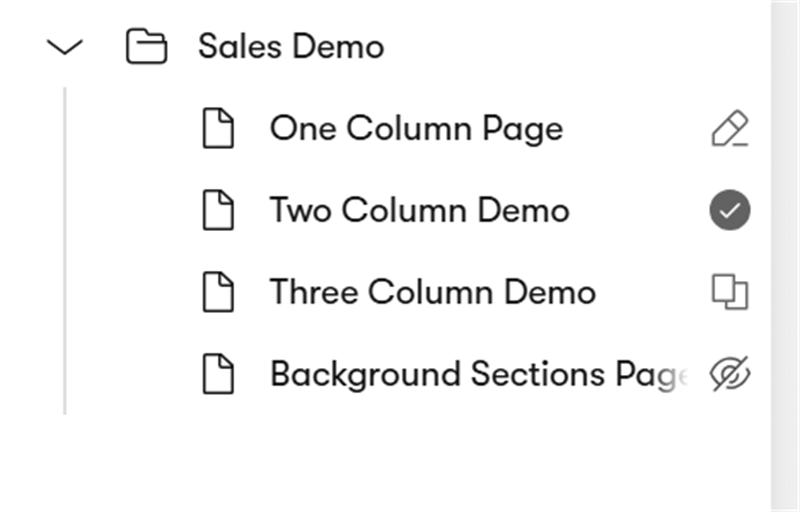 Status indicators top to bottom - new draft (not visible) published page (visible entirely),
published page with changes saved (changes not visible), unpublished (page no longer visible
may be redirected).
New or Draft State
A draft is a working version of a page. Drafts are used while content is being written, reviewed, corrected, or prepared for approval. Saving a draft does not automatically make the change visible on the public website.
Use the draft state when a page is incomplete, still needs review, or should not yet be available to visitors. Drafts let authors save progress safely without affecting the live site.
Only users with the correct Kentico administration permissions can see and edit draft content in the admin interface. Public website visitors cannot see a new draft page until it is published. If the page already has a published version, visitors continue to see the existing published version until the draft changes are published.
Preview State
Preview lets authors and reviewers check how a draft or saved version will look before it is published. Use preview to confirm layout, links, headings, images, forms, metadata, and reusable content before requesting publication.
Preview is not the same as publishing. A page can look correct in preview while still being unavailable to normal website visitors. Treat preview as a review tool, not proof that the page is live. Save your changes before you preview your changes so that you dont lose your content updates. When in use, you get a WYSIWYG view in the admin frame, read more about Preview.
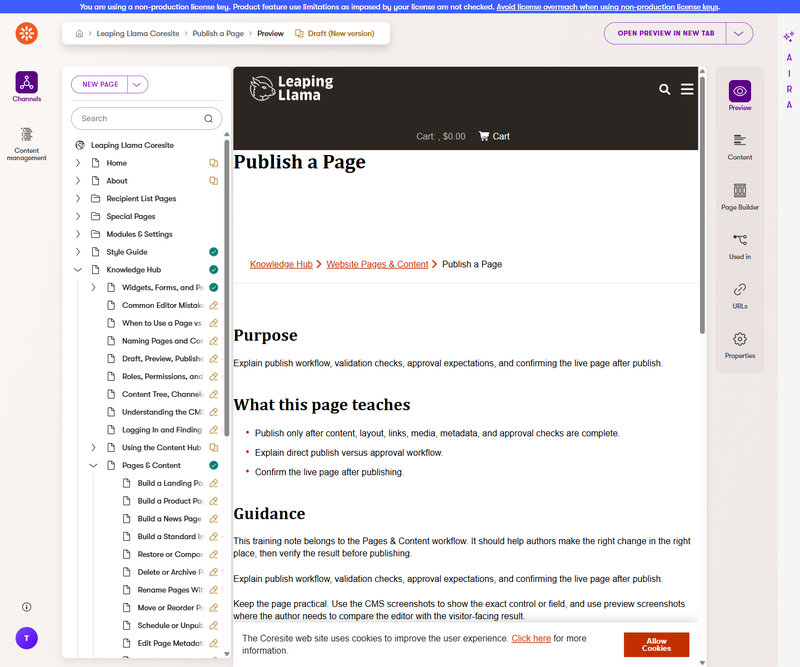 Preview is accessed via the eye tab at the top right Who can see a preview depends on how the preview is opened. Users with Kentico access can preview from the administration interface. If a shareable preview URL is generated, people with that link may be able to review the page according to the site’s preview setup. Do not treat preview links as public publishing links.
Published state
A published page is an approved version, available to the website. Published content can appear on the live site, in navigation, in search, and anywhere else the page or its content is used, depending on the site configuration and headless delivery of content to other channels.
Published content can be seen by public website visitors unless the page has access restrictions, membership requirements, scheduling rules, or other visibility settings. Always confirm these settings if the page should only be available to a limited audience.
Updated Published State
When a published page is edited and saved as a new draft, the live website usually continues to show the previously published version. The new changes only replace the live version after they are published.
Unpublished or archived state
An unpublished or archived page is not available as normal live website content. Use this state when a page should be removed from public view but may still be needed for records, future reuse, review, or restoration.
Unpublished or archived content can usually still be seen by authorised Kentico users in the administration interface. Public users should not be able to browse to the page as live content, although cached links, search indexes, redirects, or external references may need separate checking depending on the site setup.
Find out more about unpublishing
When to Unpublish Instead of Delete
Do not delete content just because it should no longer appear on the website. In most cases, unpublishing or archiving is safer because it removes the content from public view while preserving the page record, editing history, relationships, and context.
Deleting a page can break internal links, remove evidence of what was previously published, affect reusable content relationships, and make restoration harder. It can also create confusion if other pages, menus, redirects, campaigns, or documents still refer to the deleted page.
Use unpublish or archive when content may be needed again, when the removal is temporary, when the page has historical value, or when you are not completely sure that no other content depends on it. Delete only when the page is genuinely unwanted, has no future value, and has been checked for links, dependencies, and approval requirements. An option for a valuable URL that has search authority is redirection.
Find out how to redirect a page (guide not yet available; ask your site administrator)
Recommended Workflow
- Check the page tree indicator before opening the page.
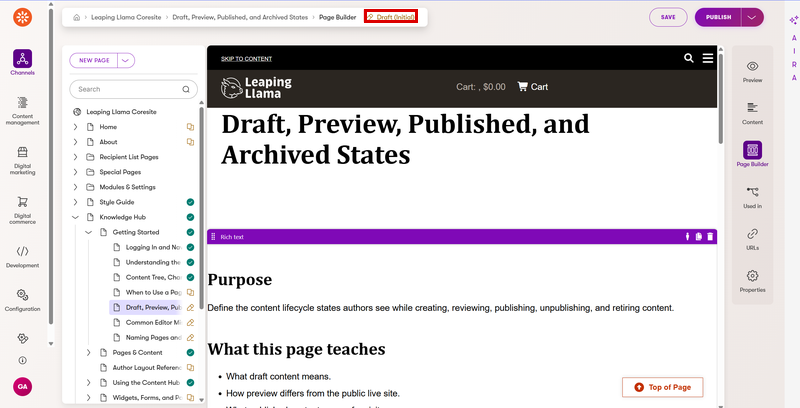
- Open the page and confirm the current status in the editing interface. It can be found in the trail navigation at the top of the page
Red rectangle highlighting the location of the status indicator for a page.
- If editing a published page, save changes as a draft first.
- Use preview to check the saved draft before requesting publication.
- Publish only when the content, layout, links, metadata, and images have been checked.
- If content must be removed from the website, choose unpublish or archive unless deletion has been confirmed as safe.
Related Articles
Schedule or Unpublish Pages or Assets