
0

Video Widget
Purpose
This page explains how to use the Video widget in Page Builder. The Video widget displays a video on a page and can include a thumbnail image, a preview video, overlay text, playback settings, and layout options.
The main video can be supplied in one of two ways: as a compressed local video stored in the Content Hub, or as a hosted video URL from a supported service such as YouTube or Vimeo. The preview video must be compressed and stored locally in the Content Hub.
What this page Teaches
- What the Video widget is for and when authors should use it.
- When to use a local Content Hub video and when to use a hosted YouTube or Vimeo URL.
- Why the preview video must be compressed and stored locally in the Content Hub.
- How thumbnail image, preview video, width, height, overlay content, and aspect ratio settings affect the widget.
- How playback options such as fullscreen, autoplay, looping, and overlay gradient affect the reader experience.
- How to preview and check video output before requesting publication.
Pro Tip: Treat the preview video as a lightweight visual teaser, not the full video. It should be short, muted, compressed, and uploaded to the Content Hub for reliable page performance.
Before you Begin
Confirm that video is the right format for the content. Use video when motion, demonstration, sound, or a hosted recording helps readers understand the topic better than text and images alone.
Before configuring the widget, confirm:
- You are editing the correct page in Page Builder.
- The main video source is approved and ready.
- If the main video is local, it has been compressed and stored in the Content Hub.
- If the main video is hosted, the YouTube or Vimeo URL is final and approved for public use.
- The preview video is compressed, local, and stored in the Content Hub.
- The thumbnail image is available in the Content Hub if the widget needs a still image before playback.
- You know the intended aspect ratio, width, height, overlay text, and playback behaviour.
Basic Workflow
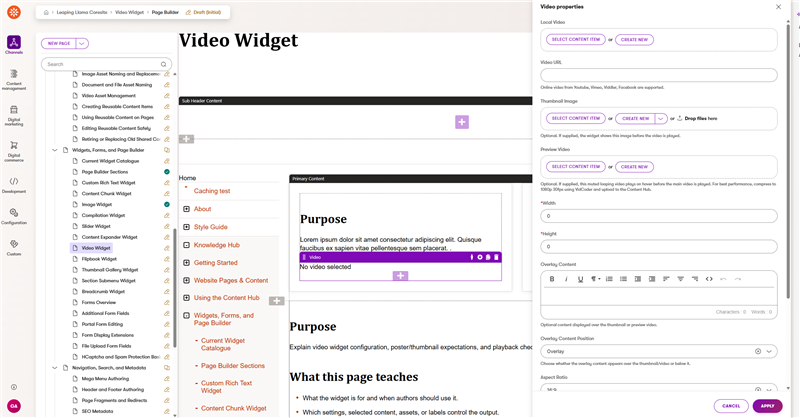
Step 1: Open the Video Widget
- Open the page in Page Builder.
- Select the Video widget in the editable area where it appears.
- Open Video properties.
- Confirm you are editing the intended widget before changing media or playback settings.
Step 2: Choose the Main Video Source
- Use Local Video when the main video file is stored in the Content Hub.
- Use Video URL when the main video is hosted on YouTube or Vimeo.
- Do not use both unless the project pattern specifically requires it.
- If using a local video, select the approved compressed video item from the Content Hub.
- If using a hosted video, paste the final approved URL and check that it opens outside the CMS.
Step 3: Select the Thumbnail Image
- Use Thumbnail Image when the widget should show a still image before the video plays.
- Select an approved image from the Content Hub, or create a new image asset if no suitable thumbnail exists.
- Check that the thumbnail is clear, relevant, and not misleading.
- Check alternative text or image description fields where the project requires them.
Step 4: Select the Preview Video
- Use Preview Video when the widget should show a short muted looping preview before the main video plays.
- Select the preview video from the Content Hub.
- Confirm the preview video is compressed before upload.
- For best performance, use a compressed 1080p 30fps preview video where that is the project standard.
- Do not use a YouTube or Vimeo URL for the preview video. The preview video must be stored locally in the Content Hub.
Pro Tip: If the preview video is too large, the page may feel slow before the reader has chosen to play anything. Keep preview files lightweight.
Step 5: Set Size and Aspect Ratio
- Set Width and Height when the page design requires fixed dimensions.
- Leave width or height at the project default only when the existing pattern supports it.
- Choose the correct Aspect Ratio, such as 16:9, so the thumbnail and preview video render consistently.
- Preview the page at desktop and mobile widths to confirm the video is not cropped incorrectly.
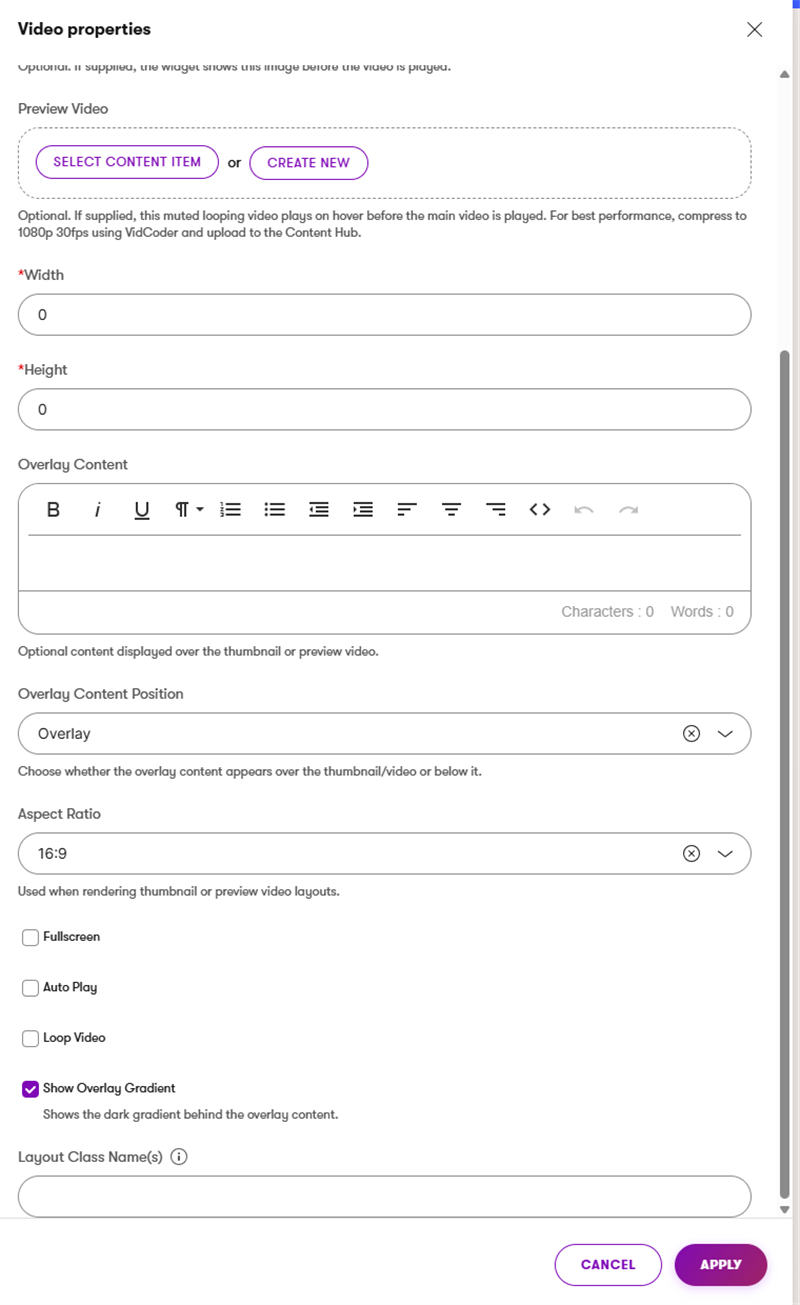
Step 6: Add Overlay Content if Needed
- Use Overlay Content only for short supporting text, such as a title or call to action.
- Choose whether overlay content appears over the thumbnail or video, or below it, using Overlay Content Position.
- Use Show Overlay Gradient when text needs a dark gradient behind it for readability.
- Check the overlay on every selected thumbnail or preview video frame.
Step 7: Configure Playback Options
- Use Fullscreen when readers should be able to expand the video.
- Use Auto Play carefully. Avoid autoplay for videos with sound unless the project has explicitly approved that behaviour.
- Use Loop Video only when repeated playback supports the page purpose.
- Use layout class names only when the class is approved for the page design.
Step 8: Apply, Save, and Preview
- Select Apply in the Video properties panel.
- Save the page draft or working version.
- Preview the page and confirm the thumbnail, preview video, or main video appears as expected.
- Play the video and check loading, controls, overlay content, aspect ratio, and audio behaviour.
- Check desktop and mobile layout.
- Do not publish, submit, schedule, unpublish, or archive unless that action has been specifically requested.
Quality Checklist
- The Video widget is in the correct Page Builder editable area.
- The main video source is either a compressed local Content Hub video or an approved hosted YouTube or Vimeo URL.
- The preview video is compressed and stored locally in the Content Hub.
- The thumbnail image is clear, relevant, and stored in the Content Hub where required.
- Width, height, and aspect ratio match the page design.
- Overlay content is short, readable, and positioned correctly.
- The overlay gradient is enabled only when it improves readability.
- Autoplay and looping settings match the page purpose and accessibility expectations.
- The video loads and plays in preview.
- The video layout works on desktop and mobile.
- No publish, unpublish, archive, or schedule action was taken unless specifically requested.
Related Pages
Login Panel
Training Guidelines
When training authors on this topic, start by separating the main video, thumbnail image, and preview video. Learners should understand that these are different fields with different purposes.
Demonstrate the two accepted main video patterns: a compressed local Content Hub video, or a hosted YouTube or Vimeo URL. Then emphasise that the preview video is different: it must be compressed and stored locally in the Content Hub.
Ask learners to review a widget configuration and identify the video source, thumbnail, preview video, aspect ratio, overlay content, autoplay setting, and loop setting. Then preview the page and confirm which parts appear before and after playback.
End the session by checking performance and accessibility: file size, loading behaviour, readable overlay text, no unexpected sound, usable controls, and mobile layout.