
0

Video Asset Management
Purpose
Use this page to manage video assets and video references in Xperience by Kentico so authors can select the right video, keep metadata clear, and verify playback before content goes live.
Video may be stored as a managed content item, linked from an approved external platform, or selected through a page field or widget depending on the project setup. The important authoring rule is the same: manage the video deliberately, describe it clearly, and test it in context.
What this page Teaches
- How to search for an existing video before creating a new video asset.
- How to identify the video source, such as a Content Hub item, hosted file, or approved embed URL.
- How to complete video title, description, thumbnail or poster image, tags, and source fields.
- How to decide whether to reuse, update, replace, or create a video asset.
- How to check captions, transcripts, fallback links, and supporting text.
- How to preview playback on desktop and mobile before publication.
Before you Begin
Start in Content Hub when the video is managed as a reusable asset. Start in the relevant page or widget only after you have confirmed which video item or source should be used.
Before adding or replacing a video, confirm:
- the video is approved for the site and suitable for the intended audience;
- the video source is still available and controlled by the correct team or platform account;
- the title and description explain the video clearly without relying on the page around it;
- the thumbnail or poster image is approved and represents the video accurately;
- captions, transcript, or fallback content requirements have been considered;
- changing an existing video will not unexpectedly affect other pages that use the same item.
Pro Tip: Do not paste raw embed scripts into rich text unless the project has confirmed that no supported video widget or video asset field can handle the source. Widgets and managed assets are easier to preview, reuse, replace, and govern.
Basic Workflow
Step 1: Search for the video
- Open Content Hub.
- Select the correct workspace and folder.
- Search by video title, speaker name, event name, campaign name, topic, platform title, old filename, and likely alternate wording.
- Use list view when you need to compare status, folder, tags, last modified details, or usage.
- Open likely matches and inspect the title, description, source fields, thumbnail or poster image, tags, folder, status, and usage.
Step 2: Confirm the video source
Video handling varies by project. Use the source pattern configured for the site.
| Source pattern | Use when | Check before saving |
|---|---|---|
| Content Hub video item | The project manages videos as reusable structured content items. | Title, description, source reference, thumbnail, tags, status, and usage. |
| Approved embed URL | The video is hosted on an approved external platform and selected by a widget or field. | Correct URL, privacy setting, availability, playback permissions, and captions. |
| Uploaded video file | The project supports direct video file storage and delivery. | File size, format, loading behaviour, accessibility support, and performance impact. |
| Video widget setting | The page displays the video through a Page Builder widget. | Selected video, layout, poster image, caption, surrounding text, and mobile display. |
Step 3: Complete the video metadata
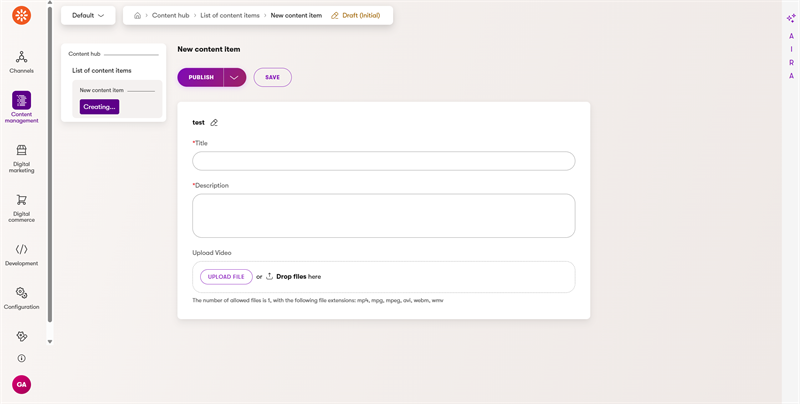 Asset forms store source references and descriptive fields authors need for reuse and maintenance.
- Use a clear title that identifies the video topic, speaker, event, or campaign.
- Write a description that helps another author decide whether the video is suitable.
- Add a thumbnail or poster image if the content type or widget provides that field.
- Add tags or taxonomy values where the project uses them.
- Add or confirm any transcript, caption, duration, platform, or source fields that are available in the project.
- Save the item as draft or working content unless publishing has been explicitly requested.
- Reopen the item and confirm the fields, source, thumbnail, tags, and status are correct.
Step 4: Decide whether to reuse, update, replace, or create new
| Decision | Use when | Check first |
|---|---|---|
| Reuse the existing video | The existing video is approved, current, and has the same meaning in the new location. | Confirm the title, source, thumbnail, caption support, status, and usage are suitable. |
| Update the existing video item | The video is still the same item, but metadata, thumbnail, tags, or supporting text need correction. | Check where it is used so the update does not surprise other pages. |
| Replace the video source | The same video asset needs a new approved source, corrected upload, or replacement embed. | Confirm every affected use should receive the replacement source. |
| Create a new video asset | The video has a different topic, speaker, audience, event, approval path, language, or lifecycle. | Record why the similar existing video is not suitable. |
Step 5: Select the video on a page or widget
- Open the page, widget, or content item that needs the video.
- Use the approved video selector, video widget, or source field configured for the site.
- Select the existing video asset or enter the approved video reference.
- Add clear surrounding text so users know what the video is and why it is relevant.
- Add a fallback link or transcript link where the project requires one.
- Save the page or content item as draft or working content unless publishing has been explicitly requested.
Pro Tip: A video should not be the only place important information appears. If the message is important, include a short text summary, transcript, or clear supporting copy so users can understand the content without playing the video.
Step 6: Preview and test playback
- Preview the page in the administration interface.
- Check that the video block appears in the correct location and does not break the page layout.
- Start playback and confirm the video loads from the correct source.
- Check the poster image, title, caption, controls, transcript link, and fallback link if present.
- Preview on mobile or a narrow viewport and confirm the video remains usable.
- Check that the page remains understandable if the video cannot be played.
Quality Checklist
- The Content Hub was searched before creating a new video asset.
- The video source is approved, current, and still available.
- The title and description identify the video clearly.
- The thumbnail or poster image is appropriate and approved.
- Tags or taxonomy values are complete where the project uses them.
- Captions, transcript, fallback link, or supporting text have been considered.
- The Used in information was checked before changing a shared video item or source.
- The page uses a supported video widget, selector, or configured source field where available.
- Playback was tested in preview.
- The video layout was checked on desktop and mobile.
- No raw embed scripts, placeholder sources, broken embeds, or unclear duplicate video items were introduced.
Related Pages
Finding Existing Content Before Creating New Content
Media and File Asset Management
Image Asset Naming and Replacement
Login Panel
Training Guidelines
When training authors on this topic, focus on video governance and preview checks. Authors need to understand where the video source is controlled and how the page displays it.
- Demonstrate searching for an existing video before creating a new item.
- Show how to inspect a video item's title, description, source, thumbnail, tags, status, and usage.
- Ask learners to decide whether sample scenarios require reuse, metadata update, source replacement, or a new video asset.
- Emphasise that raw embed code should not be pasted into rich text when a supported widget or selector is available.
- Have learners check whether a video needs captions, transcript, fallback link, or supporting summary text.
- Demonstrate previewing the page, starting playback, and checking the mobile layout.
- End the session by having learners explain what they would check before requesting publication of a page with video.