
0

Page Properties
Purpose
This page explains how to use the Properties tab for a page in Xperience by Kentico. The Properties tab shows page information, membership access settings, and permissions. These settings help authors and administrators understand what the page is, who can see it, and who can manage it.
Most content authors use the Properties tab for review, not for day-to-day writing. Page copy, images, summaries, metadata, URLs, and Page Builder layout are handled in other tabs. Properties are more technical and can affect access, editing rights, and publication behaviour.
What this page teaches
- Separate page title, navigation label, URL stub, and structured fields.
- Explain which fields affect public navigation and URLs.
- Show where visibility and template settings are controlled.
- Information: read-only details about the page, such as content type, language version, creator, last modifier, and IDs.
- Membership access: settings that can require visitors to sign in before they can view the page.
- Permissions: settings that control what roles can display, read, create, update, delete, or synchronise the page.
- Inheritance: permission behaviour where child pages receive permissions from a parent page unless inheritance is broken.
Open The Properties Tab
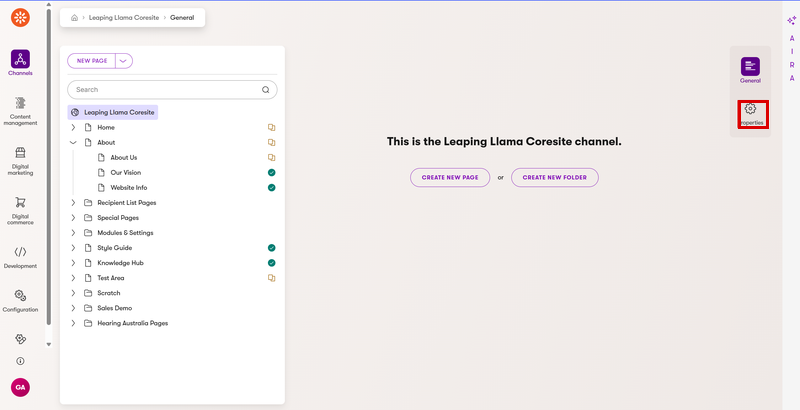
- Open the Xperience by Kentico administration interface.
- Go to the website channel that contains the page.
- Select the page in the content tree.
- Use the right-side page tabs to select Properties.
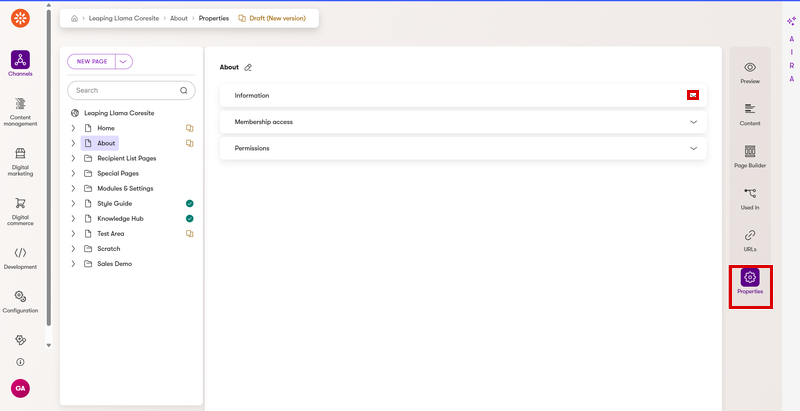
- Review the available sections: Information, Membership access, and Permissions.
Each section can be expanded or collapsed. Use the arrow at the right of the section heading to open the section you need.
Review The Information Section
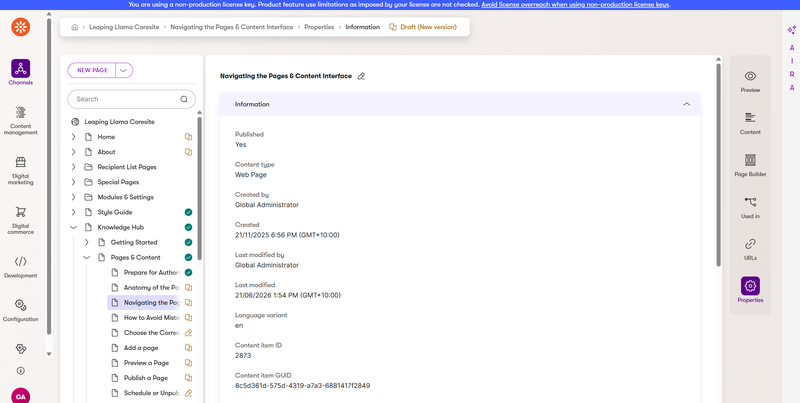
The Information section shows details about the selected page. These fields are useful when you need to confirm what page you are editing, troubleshoot content, or provide exact details to an administrator or developer.
The Information section may include details such as:
- whether the page is published;
- the content type, such as Web Page;
- who created the page;
- when the page was created;
- who last modified the page;
- when the page was last modified;
- the language version;
- the content item ID;
- the content item GUID.
When to use Information details
- Use the published status to confirm whether visitors may already be seeing a version of the page.
- Use the content type to confirm whether the page has the expected template and fields.
- Use the created and last modified details when checking recent edits.
- Use the content item ID or GUID when reporting a technical issue to an administrator or developer.
Review Membership Access
The Membership access section controls whether a page requires visitor authentication. If the Requires authentication option is enabled, access can be limited to registered members and may also be restricted by selected roles.
This setting affects who can view the page on the website. Do not enable or disable membership access unless the page owner, site administrator, or project policy confirms the intended audience.
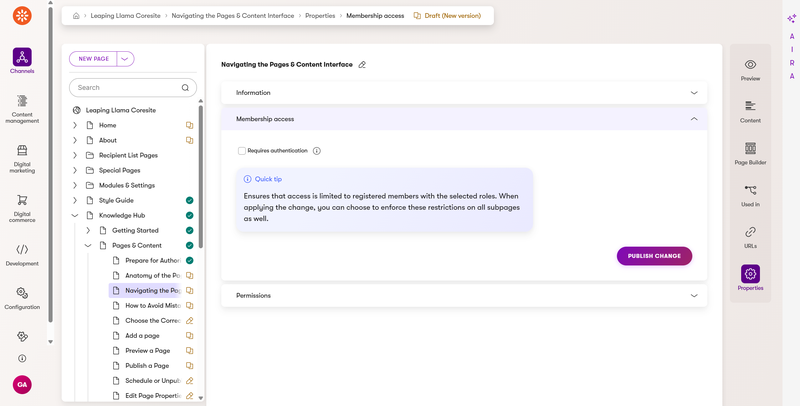
Pro Tip: Treat membership access as a visibility setting, not a formatting setting. Turning it on or off can make a page visible or unavailable to the wrong audience.
Before changing membership access
- Confirm whether the page is intended for public visitors or signed-in members only.
- Confirm which member roles should have access if roles are used.
- Check whether child pages should follow the same restriction.
- Preview or test the page using the expected visitor access state.
- Publish access changes only when the change has been approved.
Review Permissions
The Permissions section controls what CMS roles can do with the page. This is different from membership access. Membership access controls visitor access. Permissions control what administrators, editors, and other CMS roles can do in the administration interface.
Permissions may include actions such as display, read, create, update, delete, and synchronise. A page can inherit permissions from its parent page, or inheritance can be broken so the page uses its own permission settings.
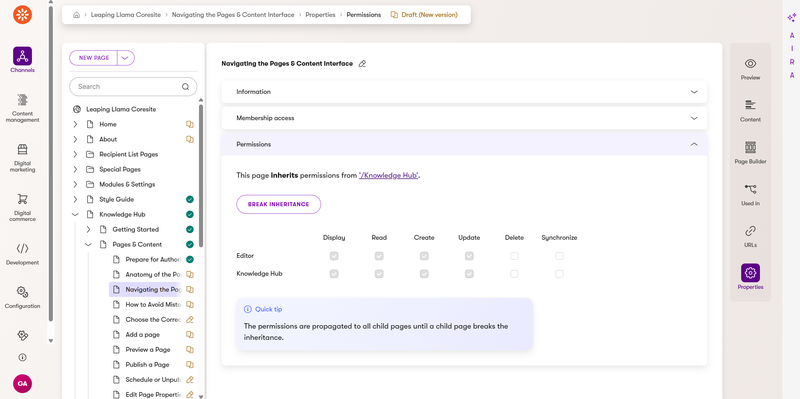
Permission terms authors may see
| Permission | Plain English meaning | Author guidance |
|---|---|---|
| Display | Allows the page to appear in the administration interface for the role. | Do not change unless an administrator confirms the role should see or stop seeing the page. |
| Read | Allows the role to open and inspect the page. | Do not remove from active authoring roles without checking the impact. |
| Create | Allows the role to create content under the page where applicable. | Use only for roles that should create child pages or related content. |
| Update | Allows the role to edit the page. | Restrict carefully because this controls who can change content. |
| Delete | Allows the role to delete the page. | Only trusted roles should have delete rights. |
| Synchronize | Allows the role to synchronise the page where the project uses synchronisation workflows. | Leave unchanged unless an administrator or developer gives exact instructions. |
Pro Tip: Do not select Break inheritance unless you understand the permission model for the page tree. Breaking inheritance can make one page behave differently from its parent and sibling pages.
What Not To Change Casually
Some Properties settings can affect live access and editing rights. If you are unsure, stop and ask a site administrator before saving or publishing changes.
- Do not change membership access just to hide a draft. Use normal draft, workflow, or publishing controls instead.
- Do not remove permissions from editor roles unless access has been approved for removal.
- Do not grant delete or update permissions to broad roles without approval.
- Do not break permission inheritance unless there is a clear reason for this page to behave differently.
- Do not publish access or permission changes without checking the effect on the page and any child pages.
Quality Checklist
- You opened Properties for the correct page in the correct website channel.
- You used Information details only for review, troubleshooting, or reporting exact page details.
- You did not change membership access unless the intended visitor audience was confirmed.
- You did not change permissions unless you were authorised to manage CMS access.
- You checked whether the page inherits permissions from a parent page.
- You did not break inheritance without an approved reason.
- You saved only the intended change.
- You previewed or tested the page after any access-related change.
Login Panel
Training Guidance
Explain page name, navigation label, URL slug, visibility, template options, and structured page fields.